Approve or reject your agent's requests
When an agent asks to spend more than your threshold, it waits for you. Nothing is charged until you approve.
- Who it's for
- Anyone with a connected AI agent.
- What you need first
- A notification that a request needs your approval.
- Time needed
- About 1 minute
- Your agent asks
- Permissions and limits checked
- Runs and is logged
- Refused: over a limit
- Waits: over “ask me”
- You approve or reject
Steps
Screenshots show the website with demo data. The CouthActs apps work the same way; differences are under “On the app”.
Step 1: Open the notification, or go to AI agents settings and filter Needs approval.
Step 2: Select Review details.
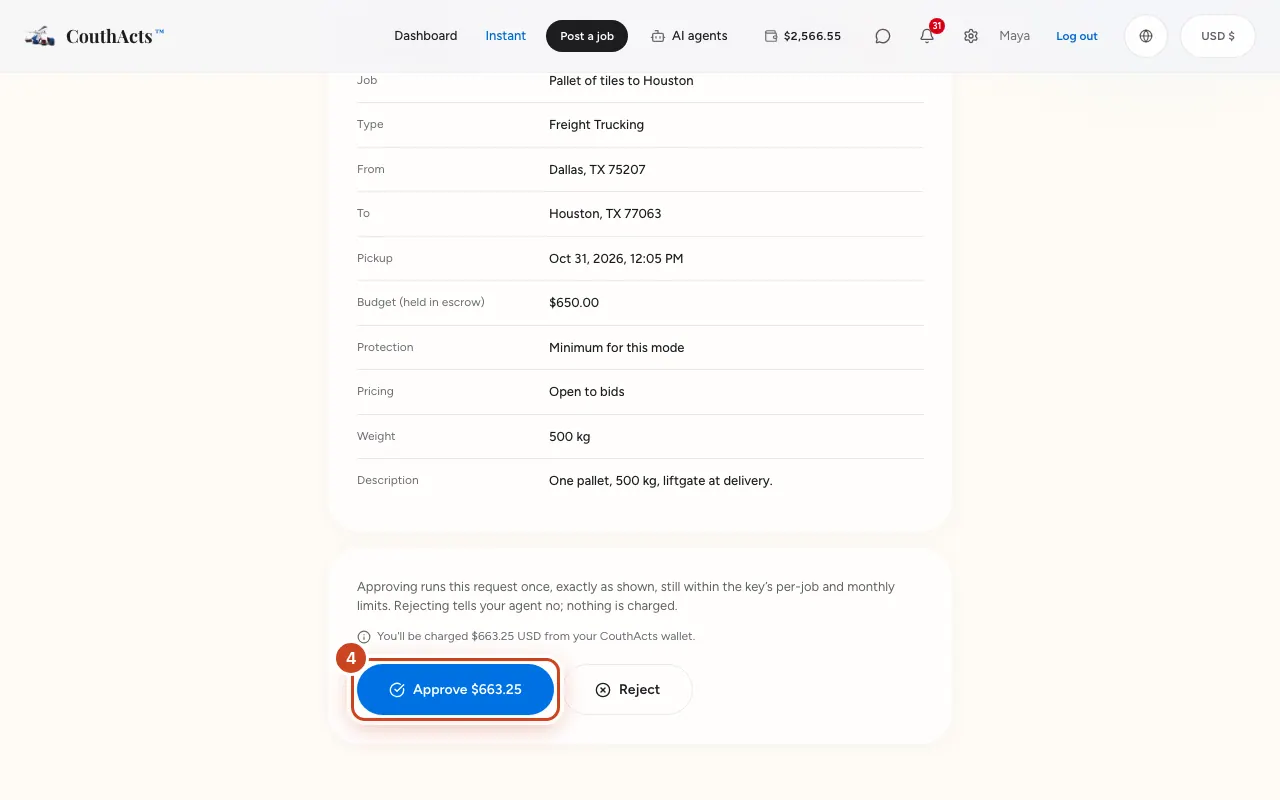
Step 3: Check what it asked for: the job, the provider, the amount and the route.
Step 4: Select Approve or Reject.
What happens next
Approving runs the request once, exactly as shown, still within the key's limits. Rejecting tells your agent no, and nothing is charged. Requests that aren't decided in time expire.
Common problems and fixes
It says the request expired.
Nothing happened. Your agent can ask again.
It says the key was revoked.
Approving won't run anything. Create a new key if you still want the agent to act.
On the app
- iPhone
- Approval notifications open the request; use Approve or Reject.
- Android
- Go to Account → AI agents → Pending approvals.
- Apple TV
- Apple TV shows a QR code to review the request on your phone.