Create an agent key
Give your own software or MCP client a key with only the permissions and limits it needs.
- Who it's for
- Developers and businesses automating bookings.
- What you need first
- A CouthActs account.
- Time needed
- About 3 minutes
Steps
Screenshots show the website with demo data. The CouthActs apps work the same way; differences are under “On the app”.
Step 1: Open AI agents settings.
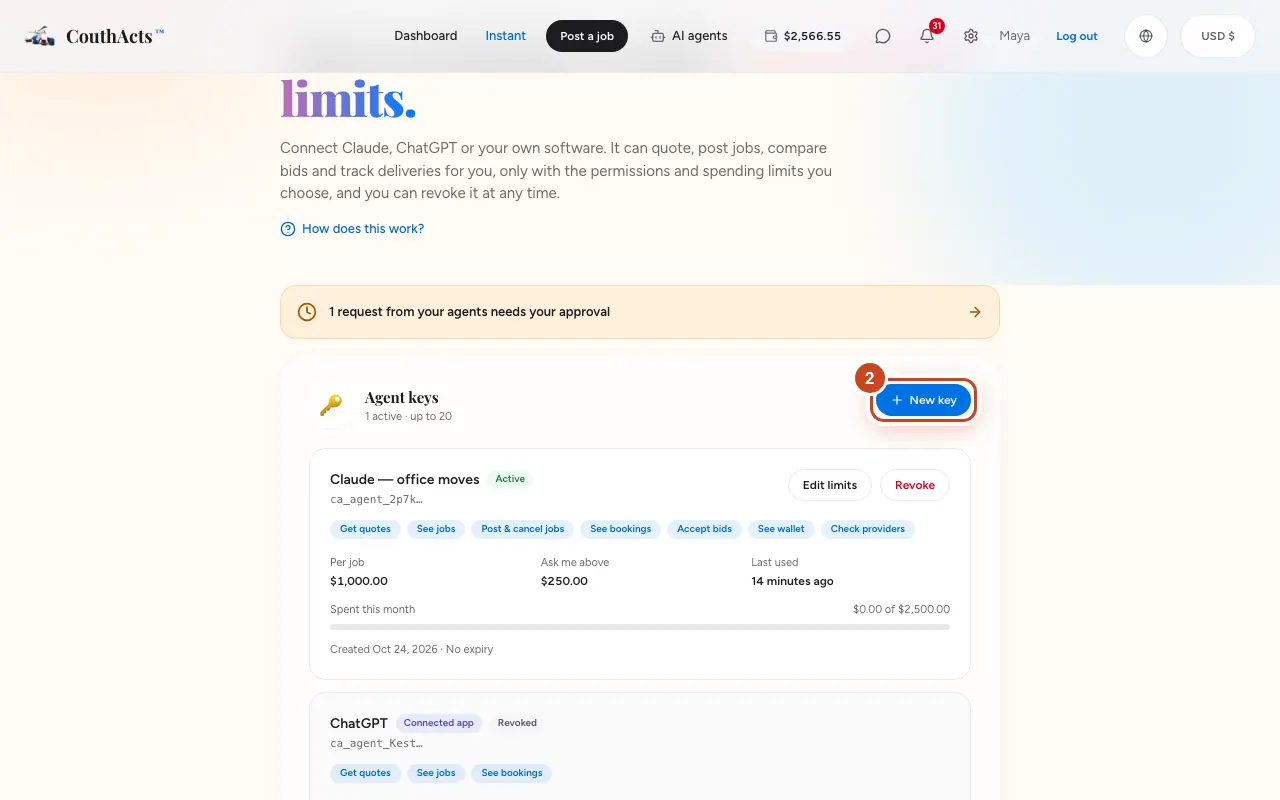
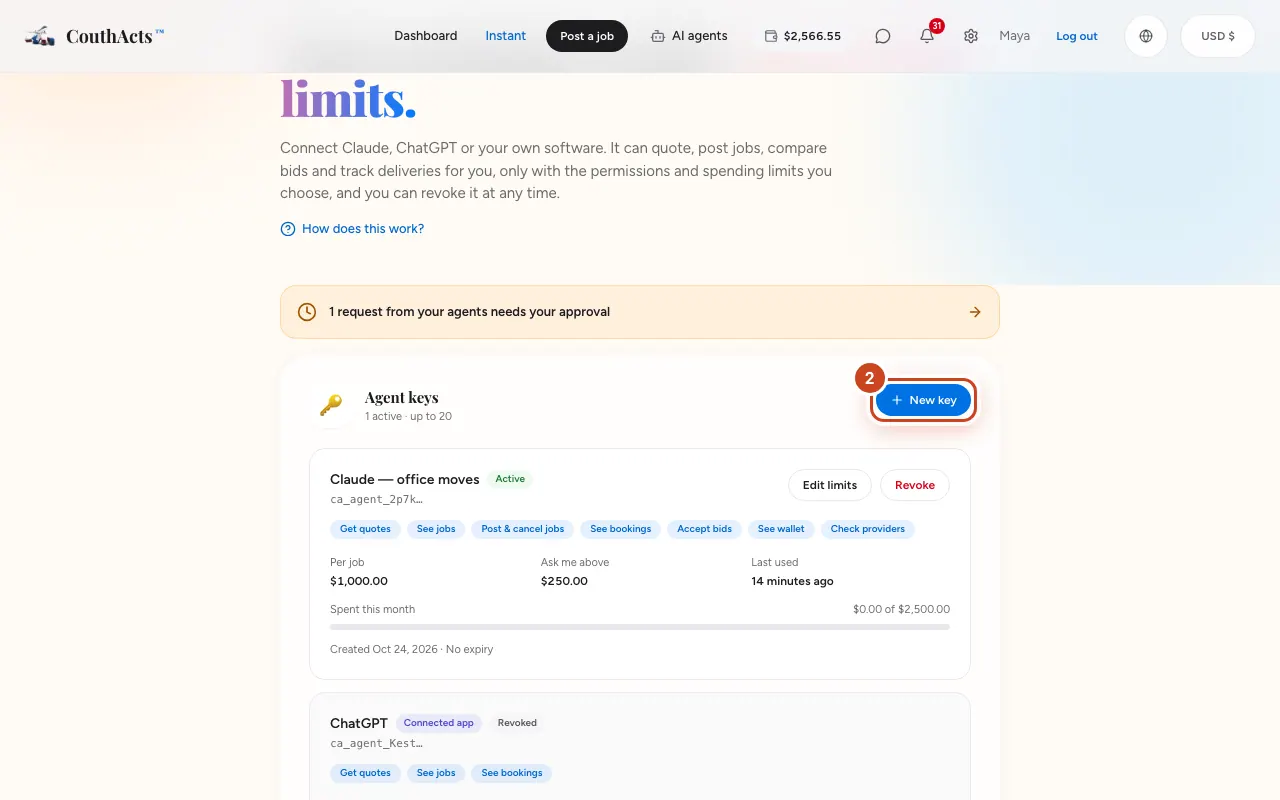
Step 2: Under Agent keys, select New key.
Step 3: Give it a Name and untick permissions it doesn't need.
Step 4: Set Per-job limit (USD), Monthly limit (USD) and Ask me above (USD).
Step 5: Choose when it Expires and select Create key.
Step 6: Select Copy key, store the key safely, then select I've saved it.
What happens next
The key is shown only once; CouthActs stores only its fingerprint. Send it as a bearer token to the MCP server or the REST API. See Use the MCP server and API.
Common problems and fixes
I lost the key.
It can't be shown again. Revoke it and create a new one.
It says the per-job limit can't be more than the monthly limit.
Lower the per-job limit or raise the monthly one.
On the app
- iPhone
- Go to Account → AI agents → Create an agent key.
- Android
- Go to Account → AI agents → Create a key.
- Mac
- Choose Go → AI Agents (Shift-Command-A).
- Apple TV
- Apple TV shows a QR code (AI agents).