Change limits or revoke an agent
Edit what a connected assistant may do and spend, see its activity, or cut it off instantly.
- Who it's for
- Anyone with a connected AI agent.
- What you need first
- An agent key or a connected assistant.
- Time needed
- About 2 minutes
Steps
Screenshots show the website with demo data. The CouthActs apps work the same way; differences are under “On the app”.
Step 1: Open AI agents settings.
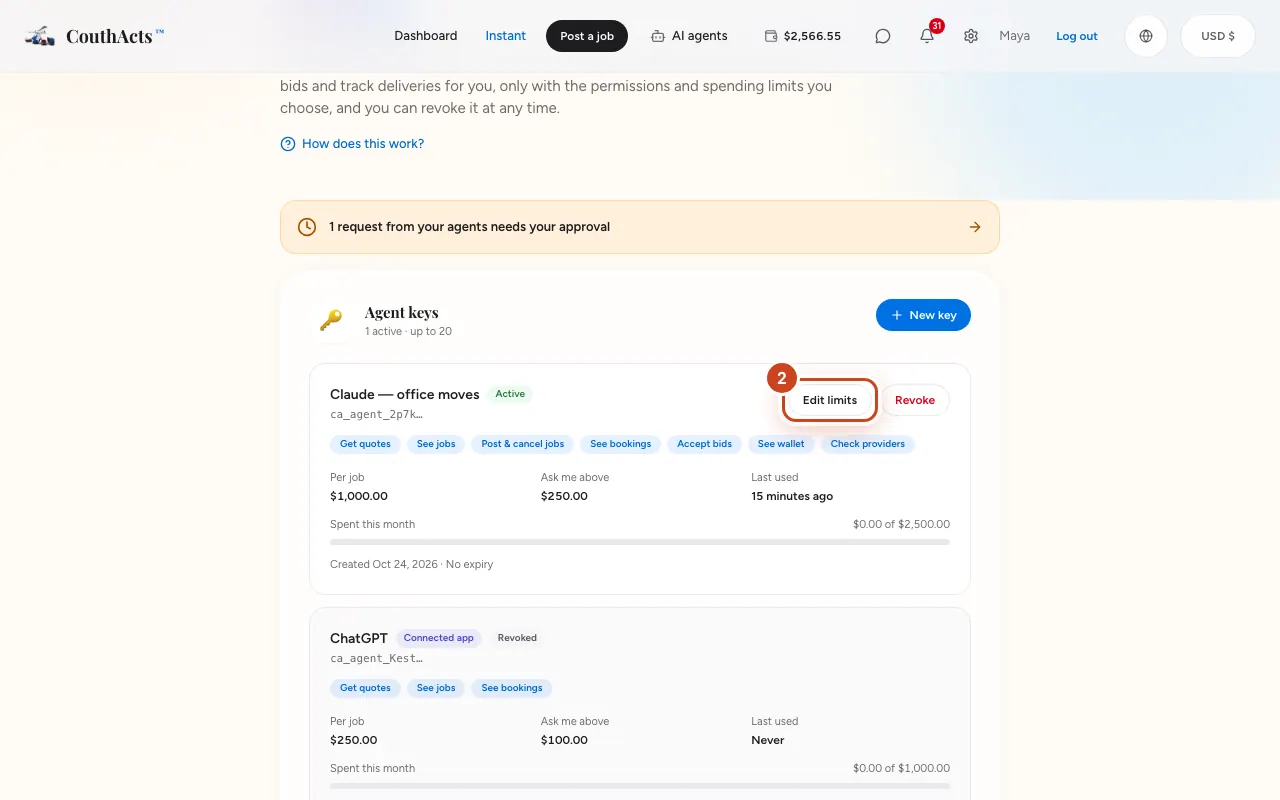
Step 2: On the key, select Edit limits.
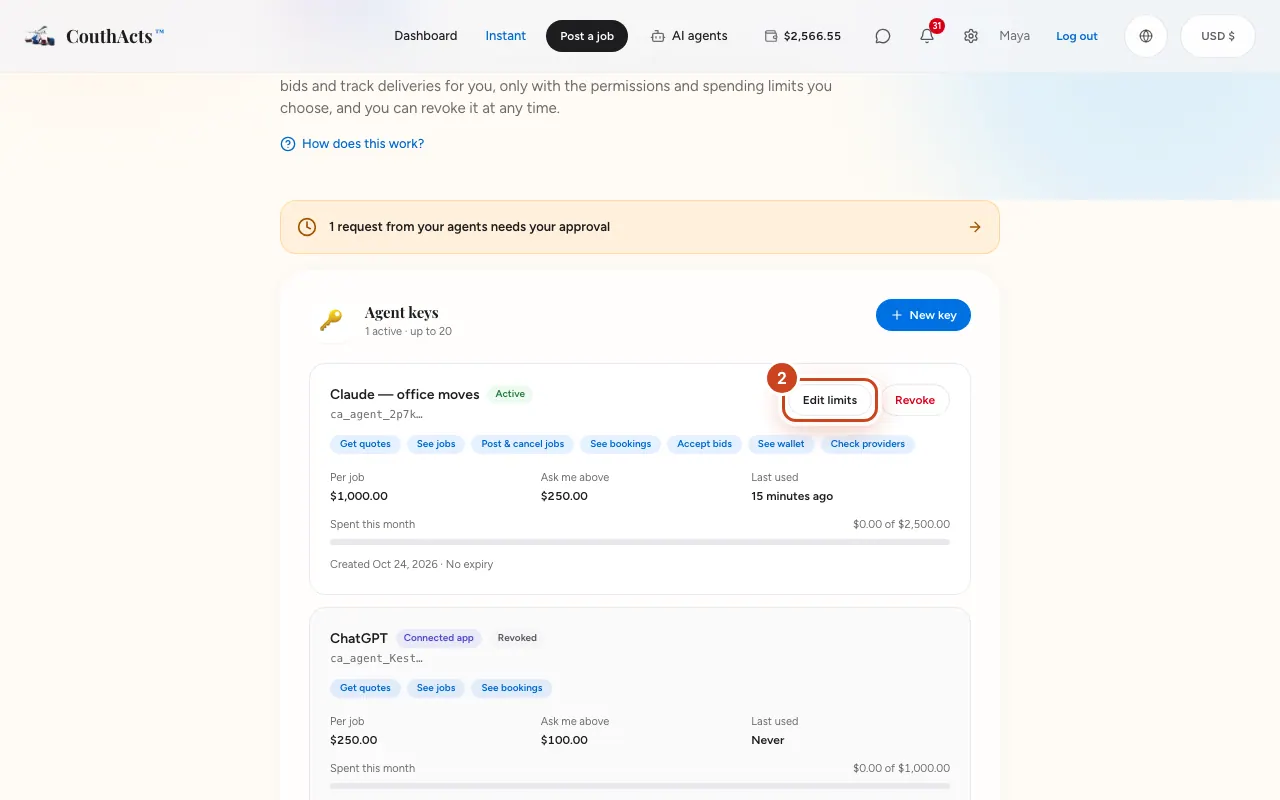
Step 3: Change the limits or permissions and select Save changes.
Step 4: To cut it off, select Revoke and then Revoke key.
Step 5: Check Activity to see everything it has done.
What happens next
Changes apply to its next request. Revoking stops it immediately and cancels anything waiting for approval.
Common problems and fixes
Can I undo a revoke?
No. Create a new key or connect the assistant again.