Connect Claude or ChatGPT
Add CouthActs as a custom connector in your AI assistant, approve access and set spending limits.
- Who it's for
- Anyone using an AI assistant that supports custom connectors.
- What you need first
- A CouthActs account.
- An assistant that supports custom connectors (MCP).
- Time needed
- About 3 minutes
Steps
Screenshots show the website with demo data. The CouthActs apps work the same way; differences are under “On the app”.
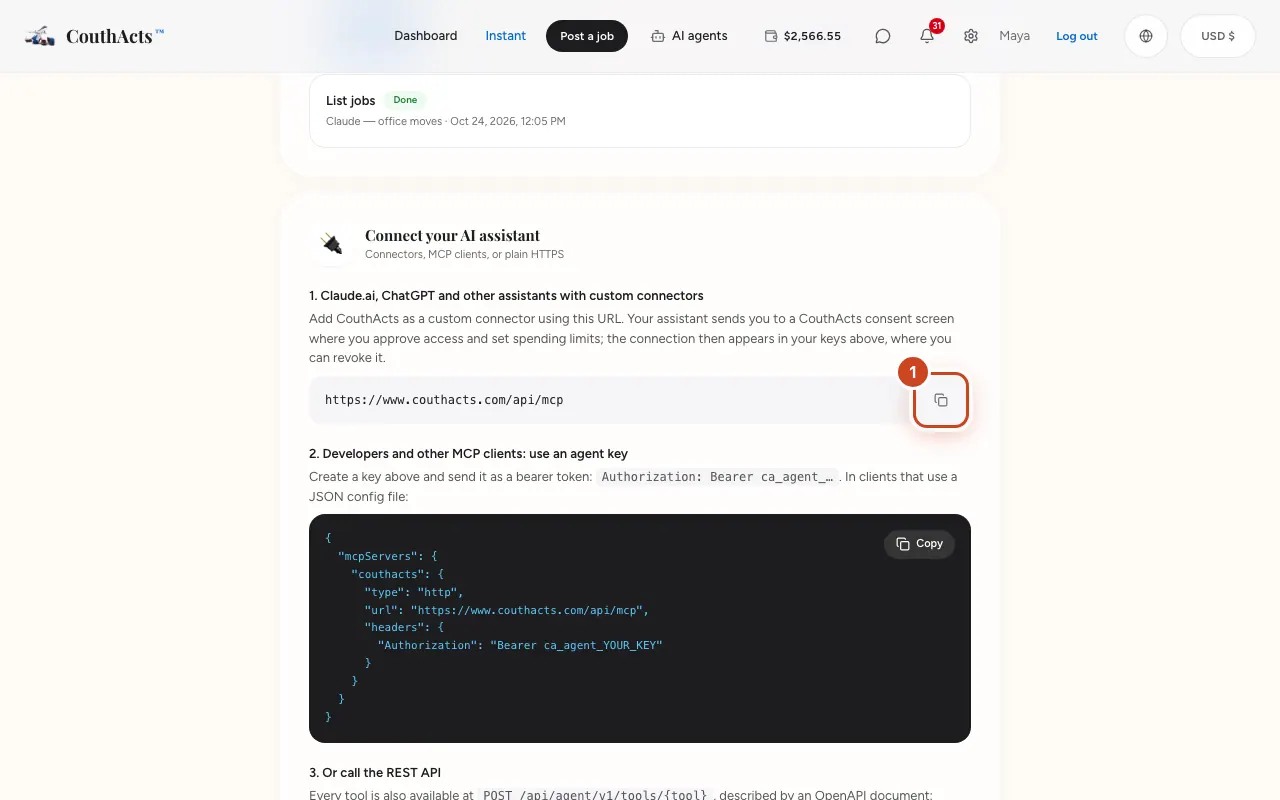
Step 1: Open AI agents settings and select Copy MCP server URL.
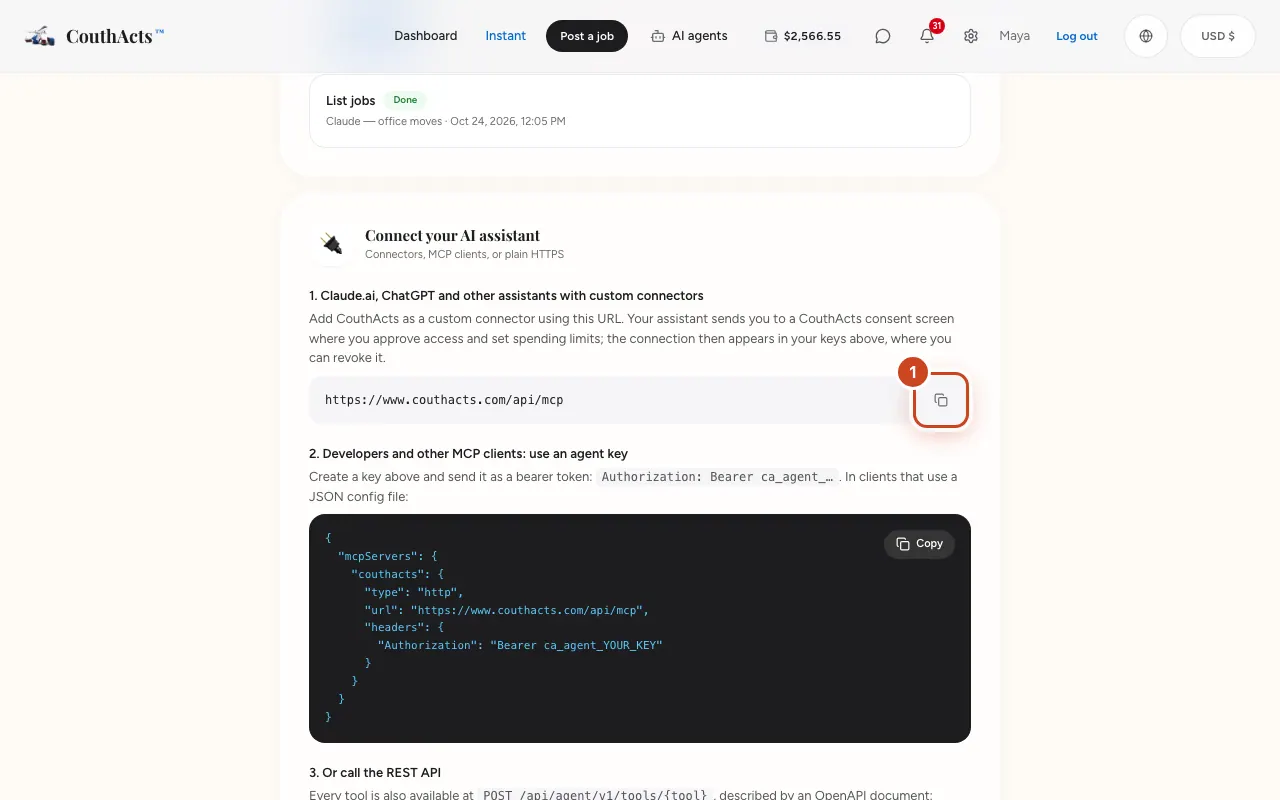
Step 2: In your assistant, add a custom connector and paste the URL.
Step 3: When your assistant sends you to CouthActs, sign in.
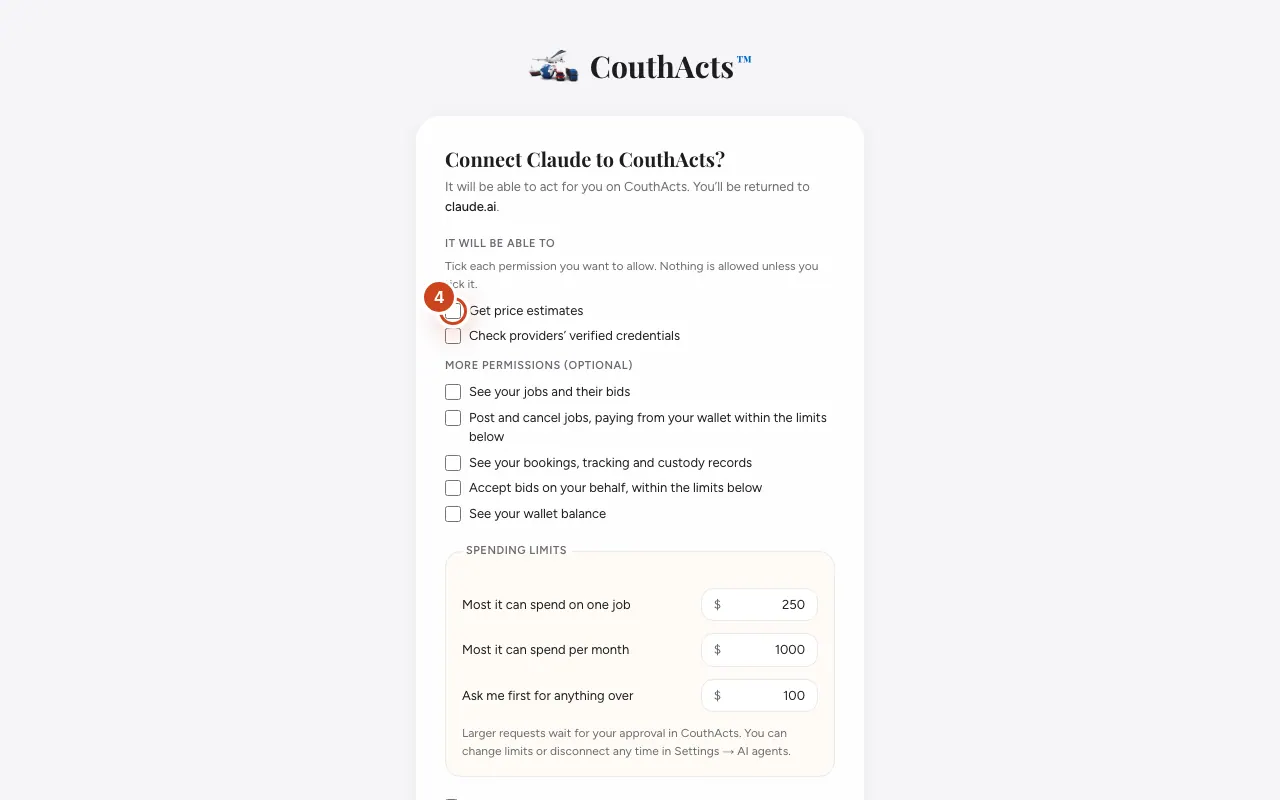
Step 4: On the Connect … to CouthActs? screen, tick each permission you want to allow.
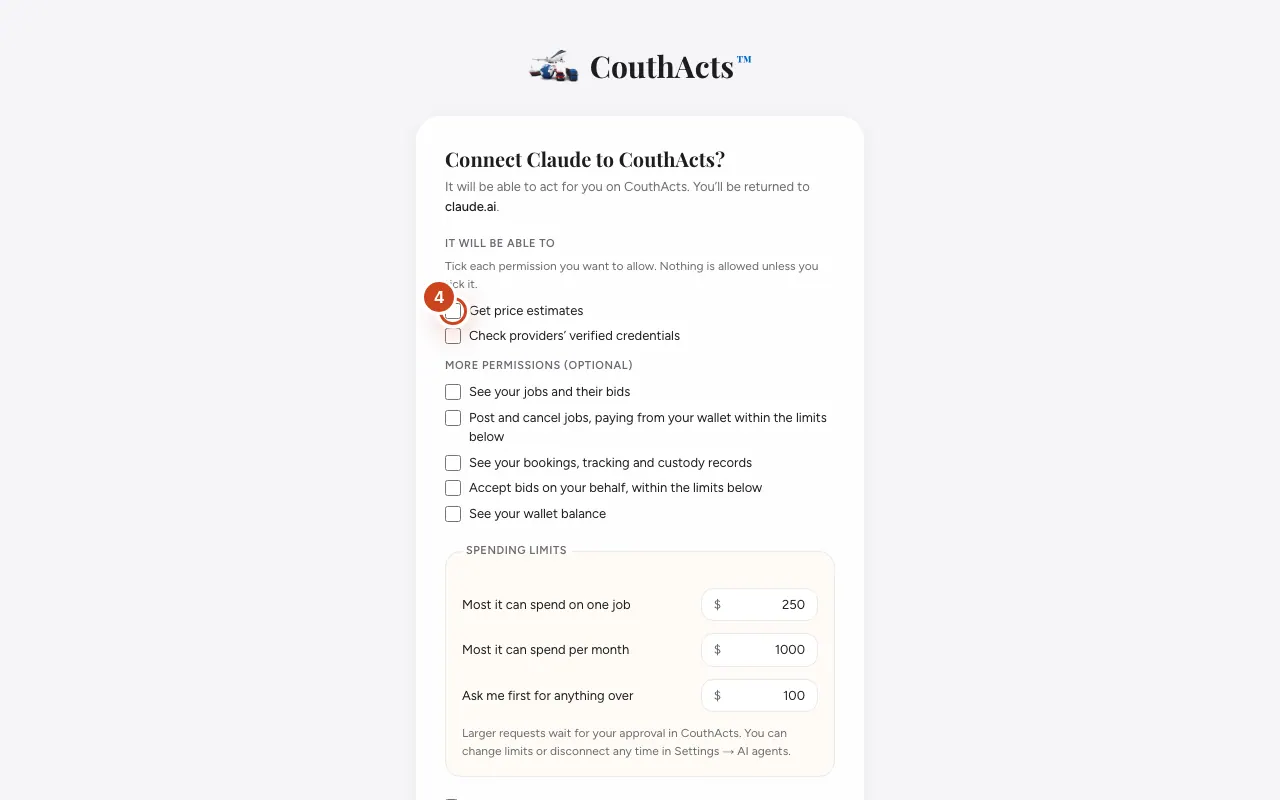
Step 5: Set the Spending limits.
Step 6: Tick the box to agree, then select Allow.
What happens next
You go back to your assistant, ready to use CouthActs. The connection appears under Agent keys in AI agents settings, where you can change its limits or revoke it.
Common problems and fixes
It says the connection request is incomplete.
Start again from your assistant; the link must come from it.
I chose Deny by mistake.
Start the connection again from your assistant.