Turn on auto-recharge
Top up automatically from a saved card when your balance runs low, so jobs and fees never stall.
- Who it's for
- Customers.
- What you need first
- A card to save on Stripe's secure page.
- Time needed
- About 3 minutes
Steps
Screenshots show the website with demo data. The CouthActs apps work the same way; differences are under “On the app”.
Step 1: Open your wallet and go to Wallet settings.
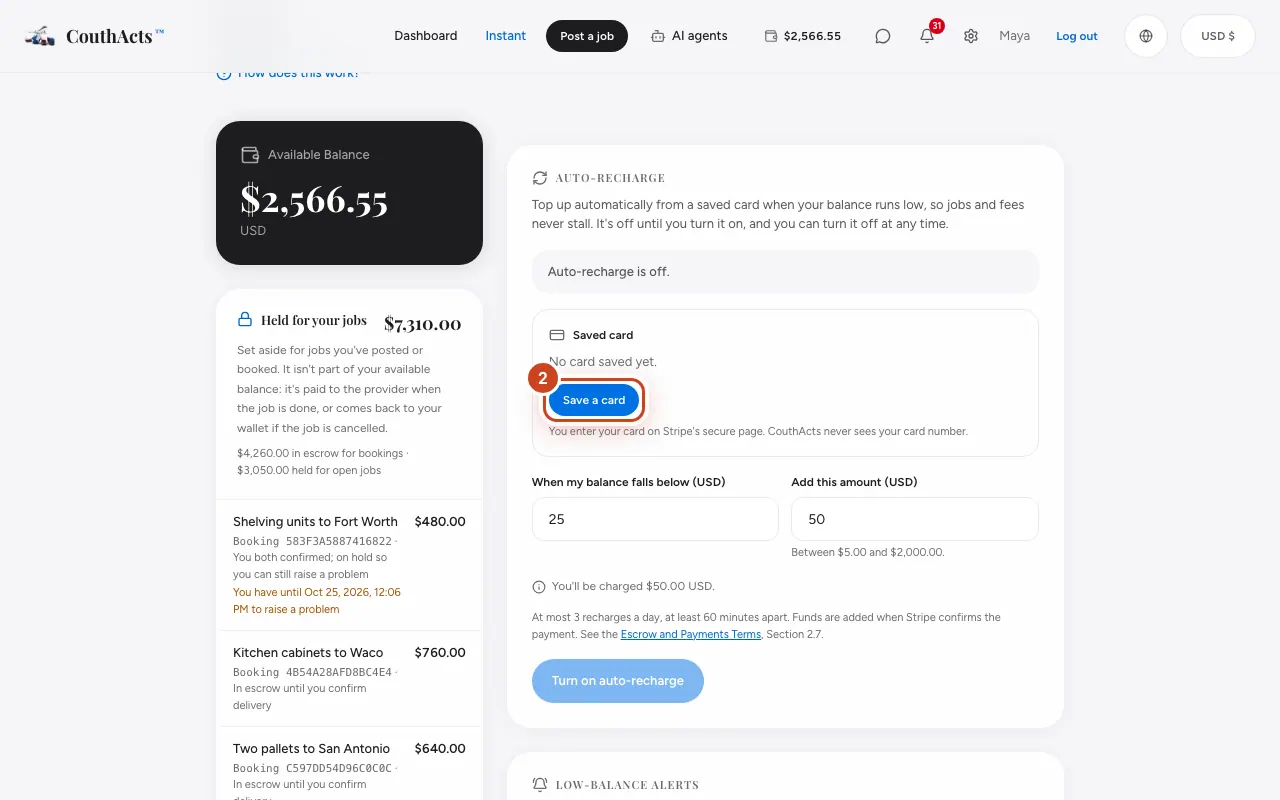
Step 2: Under Saved card, select Save a card and enter your card on Stripe's page.
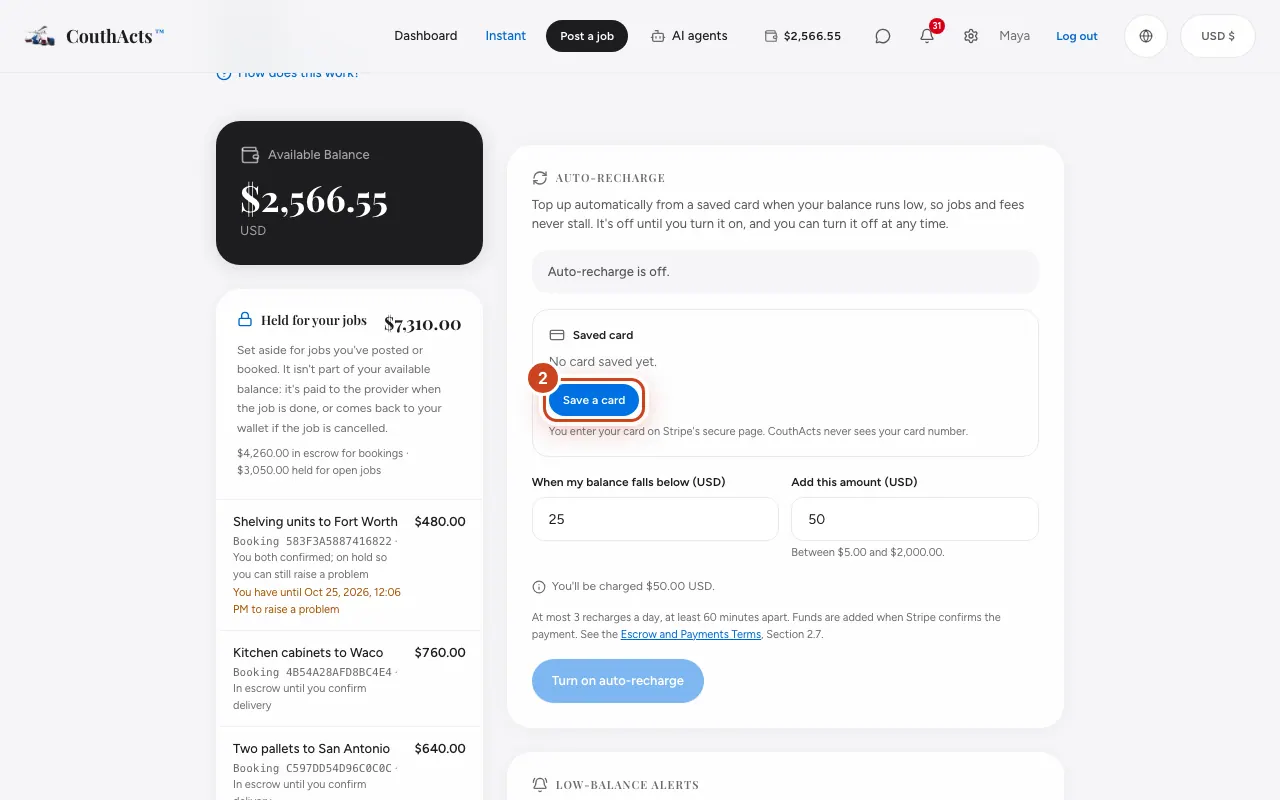
Step 3: Back on CouthActs, set When my balance falls below (USD).
Step 4: Set Add this amount (USD).
Step 5: Tick the box to authorize the charges.
Step 6: Select Turn on auto-recharge.
What happens next
When your balance falls below your amount, CouthActs charges your card and adds the funds once Stripe confirms. There's a daily limit and a gap between recharges. Turn it off at any time with Turn off.
Common problems and fixes
It says my bank needs me to confirm.
Select Complete payment and approve the payment with your bank. Nothing is added until you do.
Auto-recharge turned itself off.
It turns off after several failed attempts in a row. Check or replace your card, then turn it back on.
Can I do this in the app?
Auto-recharge is set up on the website.