Start a job and share your location
Mark the job as started at pickup, then share your live location so the customer can follow along.
- Who it's for
- Providers.
- What you need first
- A confirmed booking.
- Location turned on in your browser or phone.
- Time needed
- About 1 minute
Steps
Screenshots show the website with demo data. The CouthActs apps work the same way; differences are under “On the app”.
Step 1: Open the booking from your dashboard.
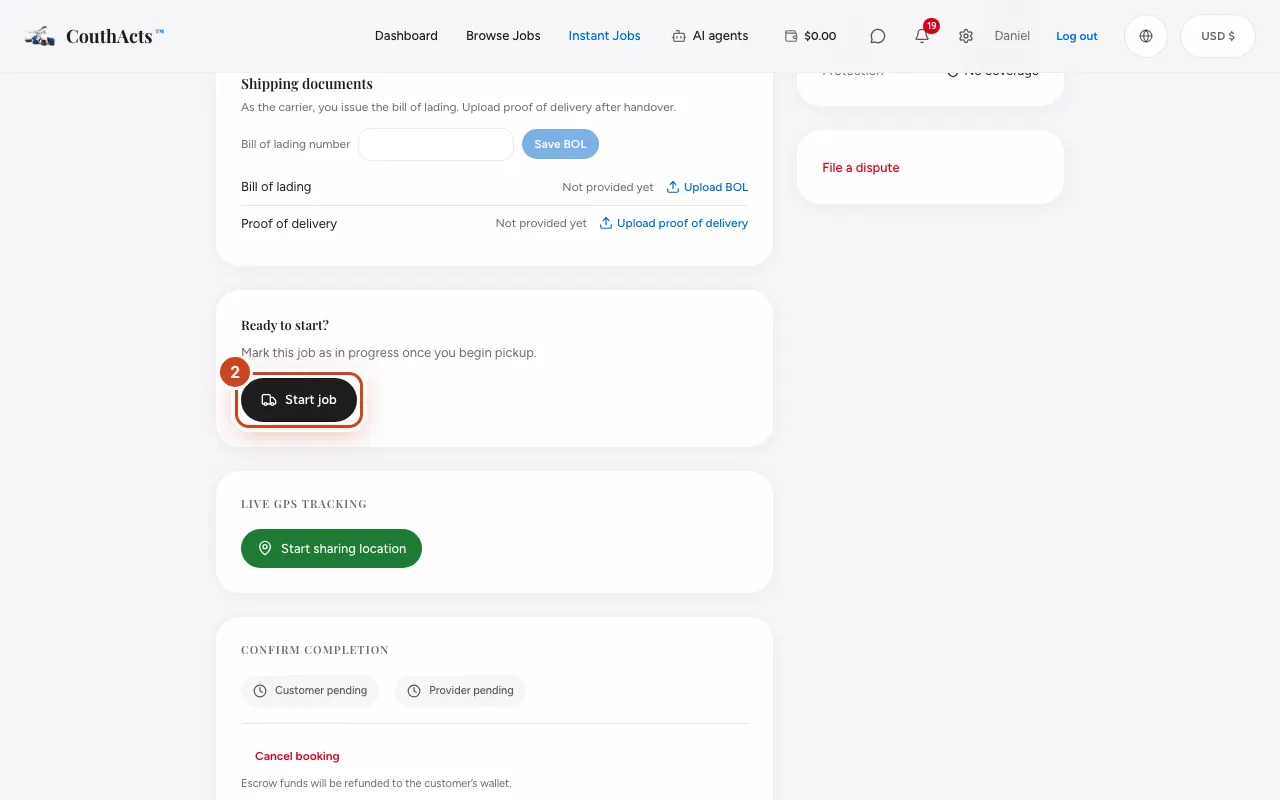
Step 2: At pickup, under Ready to start?, select Start job.
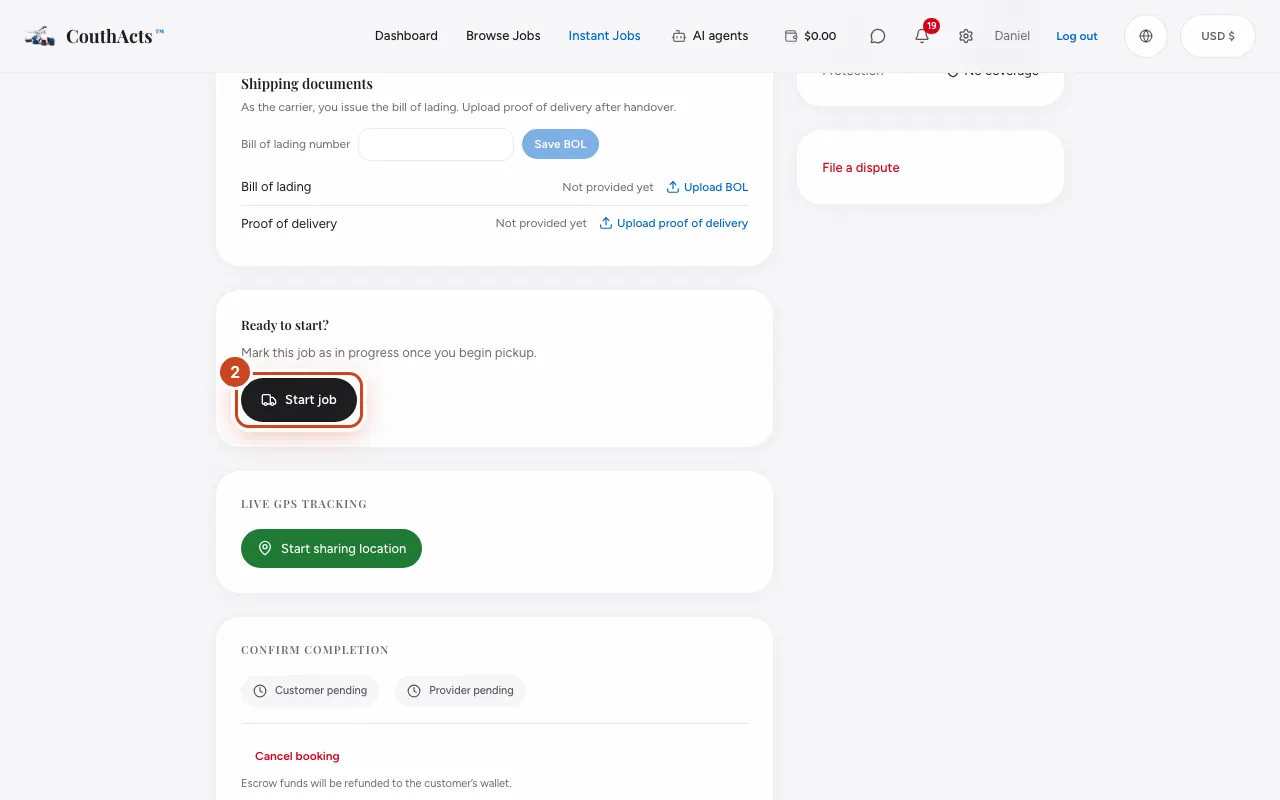
Step 3: Under Live GPS Tracking, select Start sharing location.
Step 4: Allow location when your browser asks.
Step 5: Add a pickup photo under Photo check-ins if it helps.
Step 6: When you arrive, select Stop sharing.
What happens next
The customer sees that the job is in progress and can follow your location. The start is signed into the chain of custody.
Common problems and fixes
It says it can't access location.
Allow location for couthacts.com in your browser or phone settings.
I need to cancel.
You can cancel before you start; the customer is refunded in full. Once started, a job can't be cancelled.
On the app
- iPhone
- Turn on Share live location in the booking. The iPhone keeps sharing in the background while the job is active.
- iPad
- iPad, Mac and Vision Pro ask you to share live location from your iPhone.
- Android
- Turn on Share live location in the booking, after the location notice. Android shows a notification while it shares.