Compare the bids on your job
See every offer side by side: price, the provider's CouthActs Score, completed jobs, on-time rate and their message.
- Who it's for
- Customers.
- What you need first
- A posted job with at least one bid.
- Time needed
- About 3 minutes
Steps
Screenshots show the website with demo data. The CouthActs apps work the same way; differences are under “On the app”.
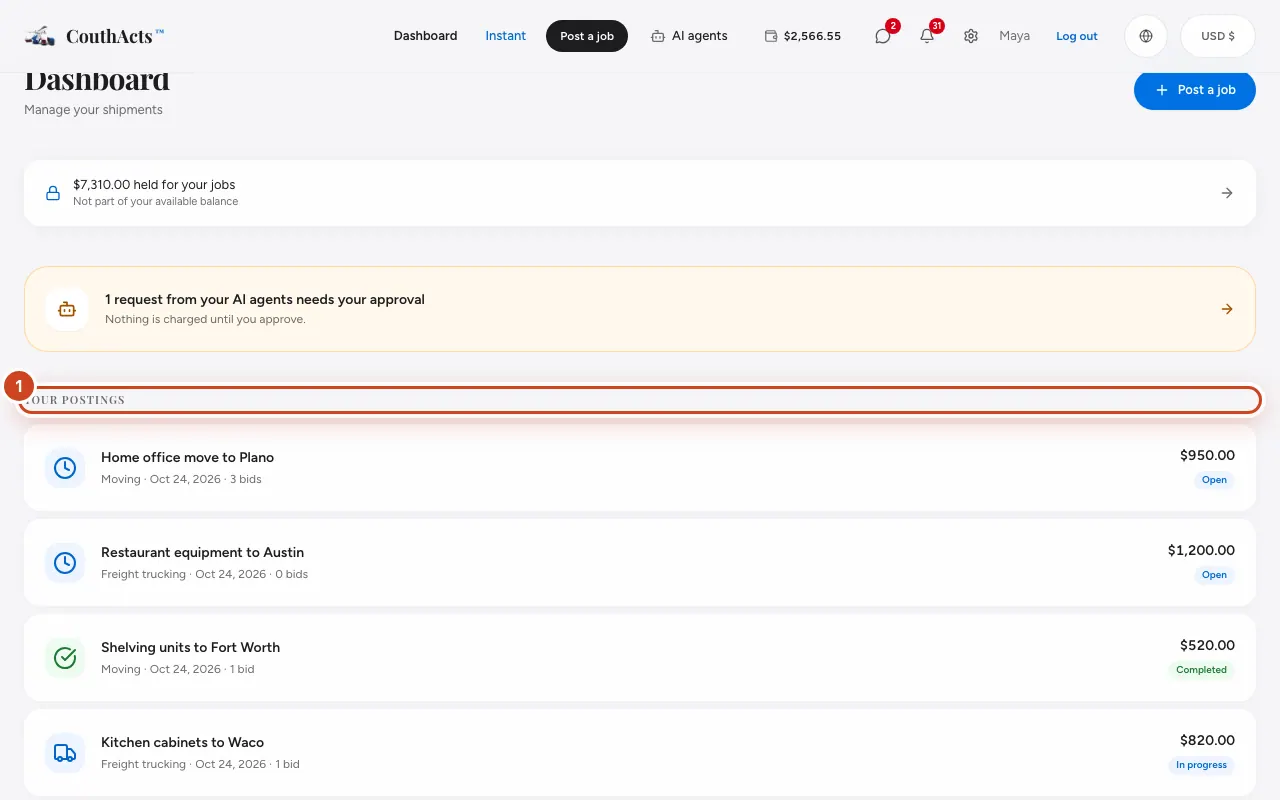
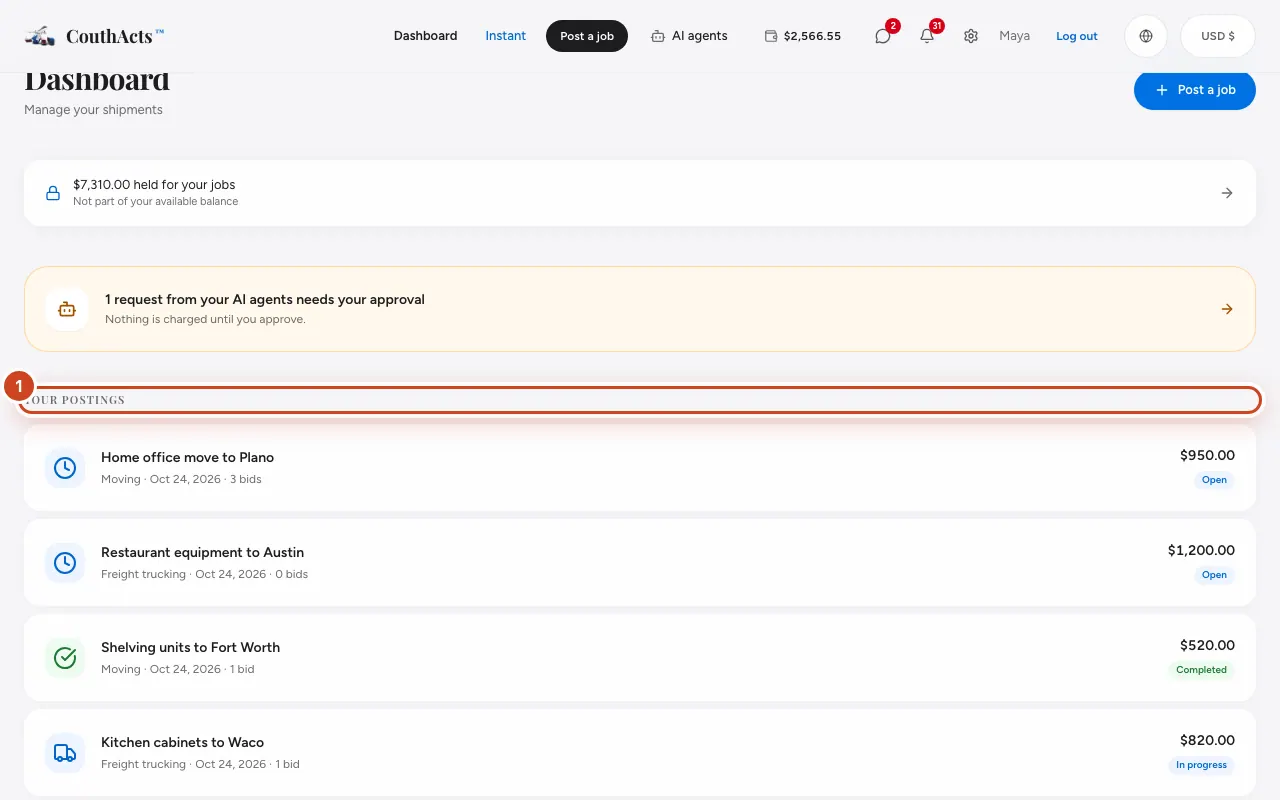
Step 1: Open your dashboard. Under Your Postings, select the job.
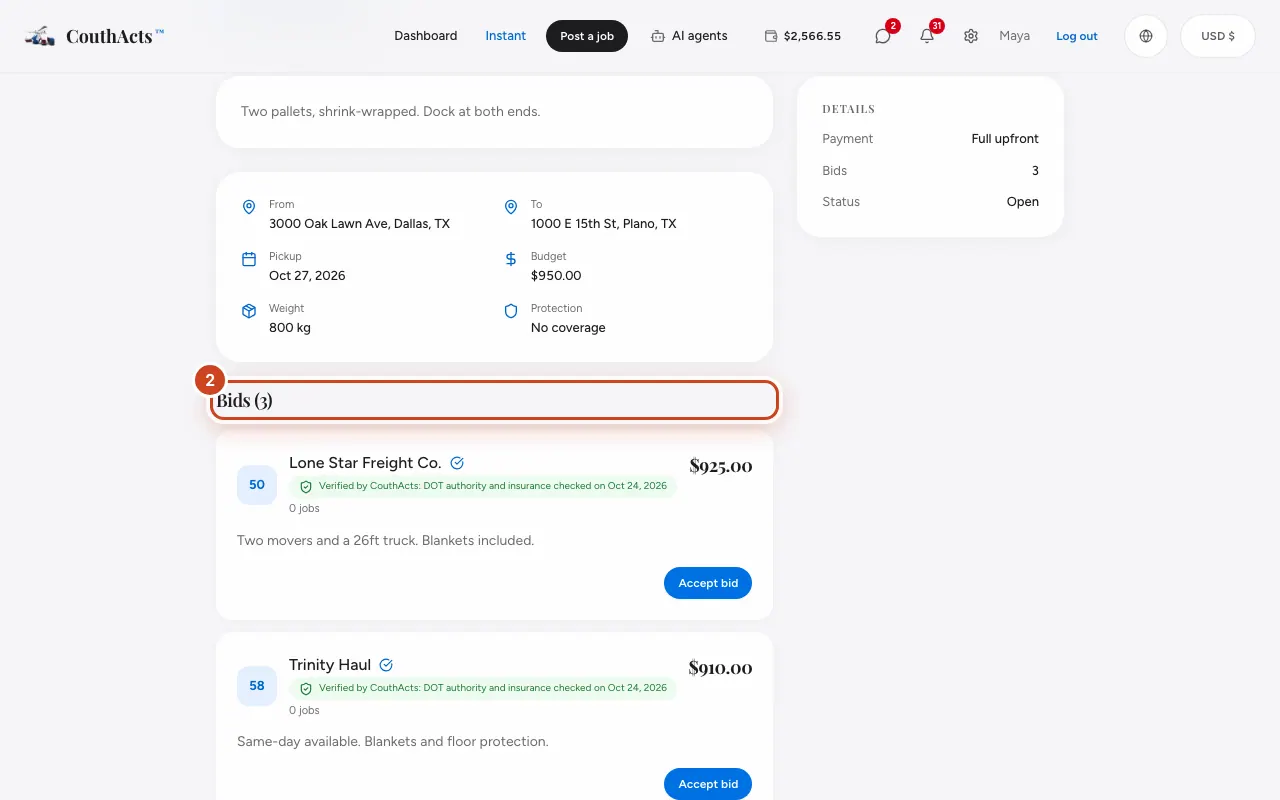
Step 2: Scroll to Bids to see every offer.
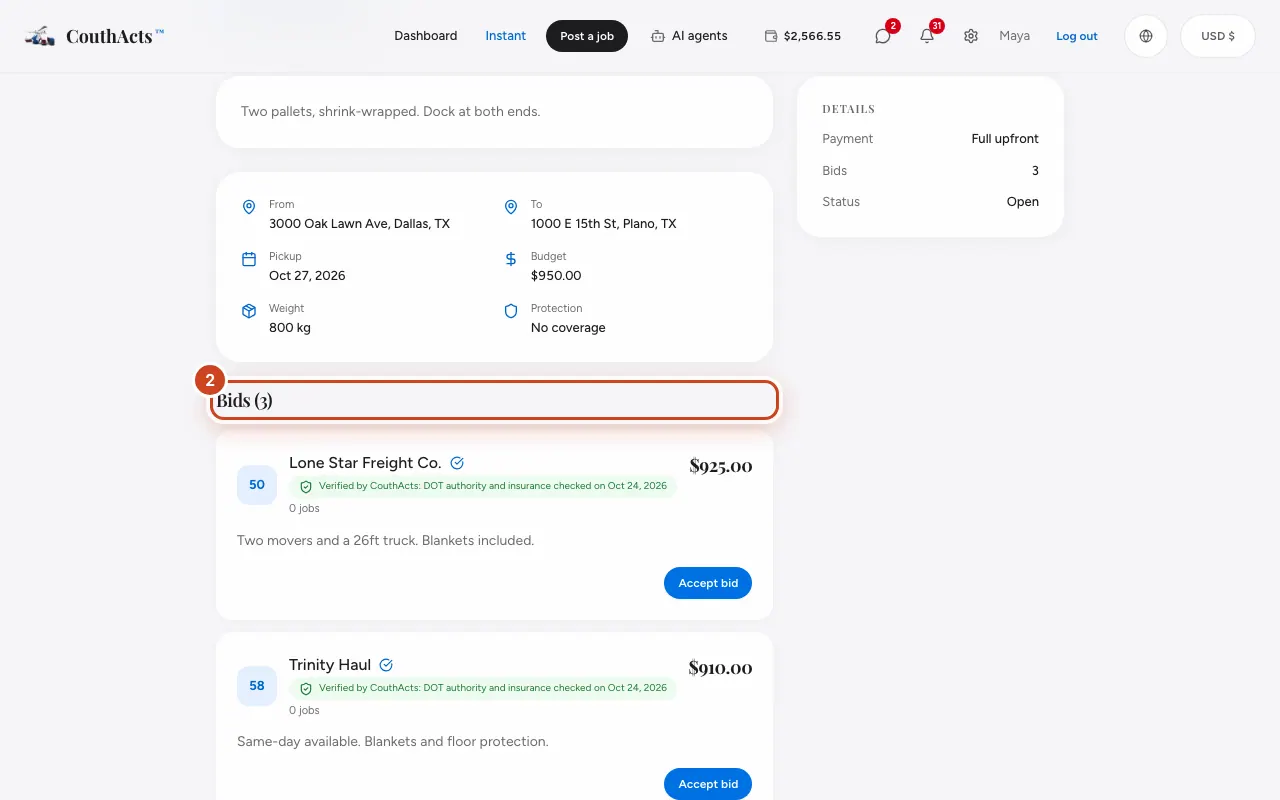
Step 3: Compare each bid's price with your budget.
Step 4: Check the provider's CouthActs Score, number of jobs and on-time rate shown on the bid.
Step 5: Read the provider's message.
Step 6: Select the provider's name to open their profile and reviews.
What happens next
Take your time: you never have to accept a bid. New bids arrive as notifications. A bid marked Edited was changed by the provider after they first sent it.
Common problems and fixes
No bids yet.
Providers usually respond within hours. A fair budget, clear details and flexible dates attract more offers.
A bid is higher than my budget.
You can only accept bids up to the budget you've set aside.
On the app
- iPhone
- Go to Jobs, open the job and look at Bids.
- Android
- Go to Jobs, open the job and look at Bids. Tap Profile and reviews on a bid to see the provider's track record.
- Apple TV
- Open the job in My jobs and select a bid.