Check a provider before you book
Read the CouthActs Score (a number with its ceiling), identity verification, the WorkPair Registry Verified badge, reviews and the signed credential.
- Who it's for
- Customers, businesses and anyone hiring a provider.
- What you need first
- The provider's name, from a bid or the providers list.
- Time needed
- About 3 minutes
Steps
Screenshots show the website with demo data. The CouthActs apps work the same way; differences are under “On the app”.
Step 1: Select the provider's name on a bid, or find them on the providers list.
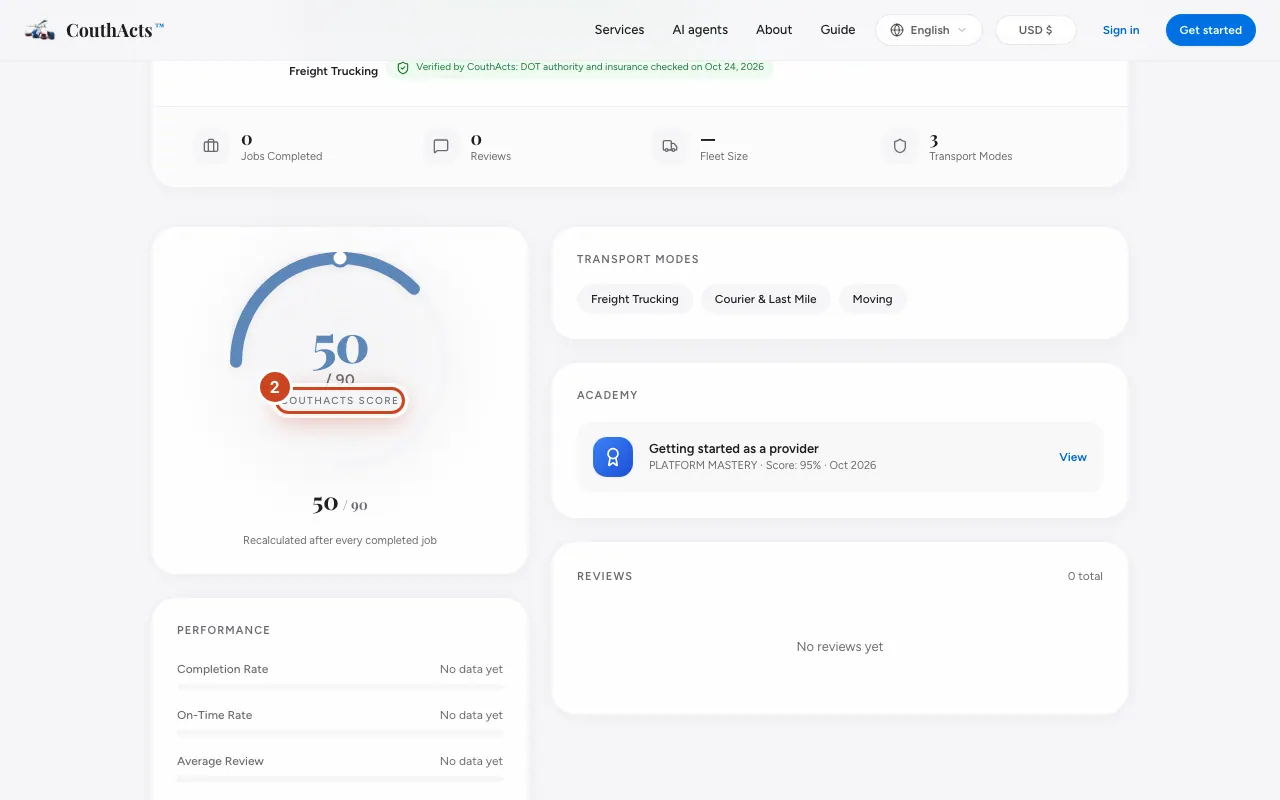
Step 2: Read the CouthActs Score. It's shown as a number with its ceiling, such as 87 / 90.
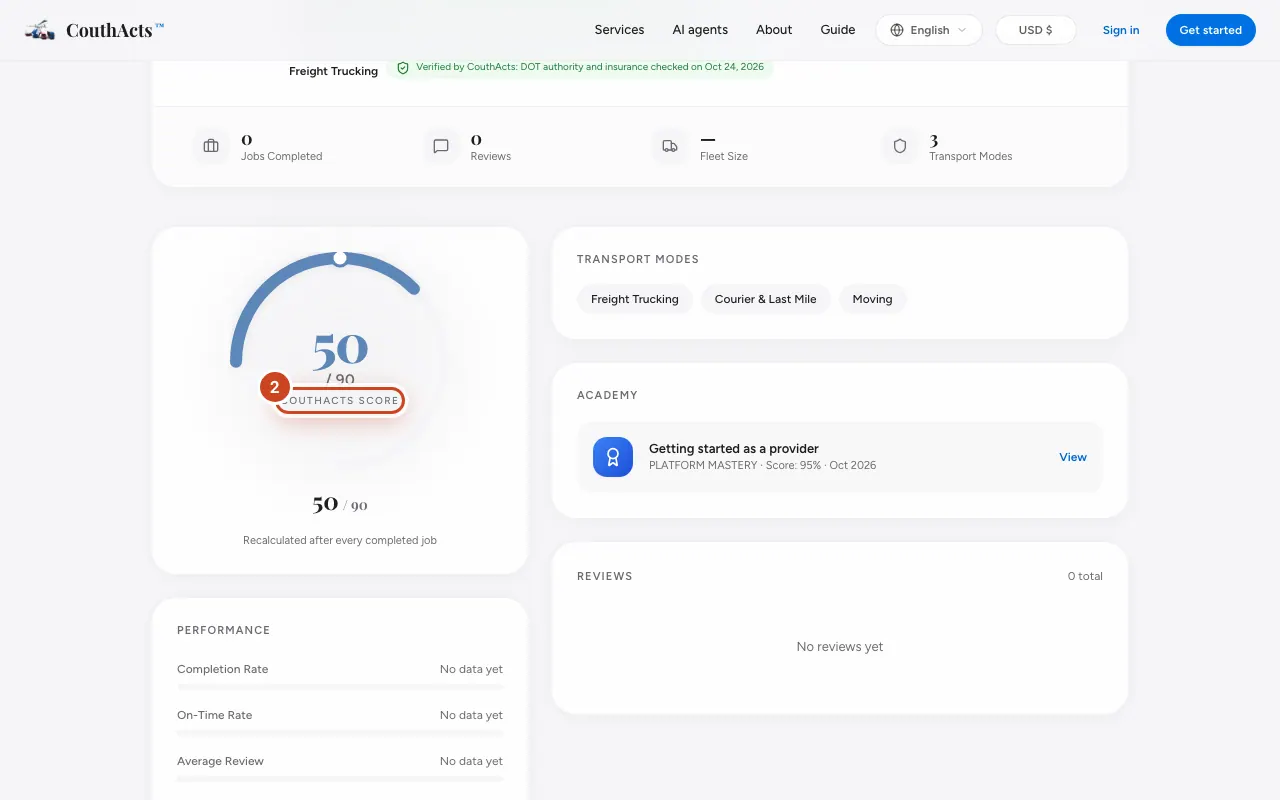
Step 3: Look for identity verification and, if present, the WorkPair Registry Verified badge. Select the badge for details.
Step 4: Check completed jobs, on-time rate, completion rate and disputes.
Step 5: Read the reviews from past customers.
Step 6: Open the provider's signed credential to check their record independently.
What happens next
The score and record are calculated from completed bookings on CouthActs. Use them with your own judgement; they describe past work and don't guarantee future results.
Common problems and fixes
What does the score number mean?
Every account starts at 50, which is normal. It rises with completed, on-time, well-reviewed work, up to a ceiling of 90, or 98 for WorkPair Registry Verified providers. See Understand the CouthActs Score.
A new provider has no rates.
Rates appear after their first completed jobs. Look at their verification and message.
Can I trust a screenshot of a badge?
No. Check the live credential page or the verify page; a copied image proves nothing on its own.
On the app
- iPhone
- Each bid shows the CouthActs Score, jobs and identity verification. Open the provider's profile on the website to read reviews.
- Android
- Tap Profile and reviews on a bid.