Sign in and sign out
Get into your account on any device, and sign out when you're done.
- Who it's for
- Everyone with a CouthActs account.
- What you need first
- Your email and password.
- Time needed
- About 1 minute
Steps
Screenshots show the website with demo data. The CouthActs apps work the same way; differences are under “On the app”.
Step 1: Select Sign in at the top of the page.
Step 2: Type your Email and Password.
Step 3: Select Sign in.
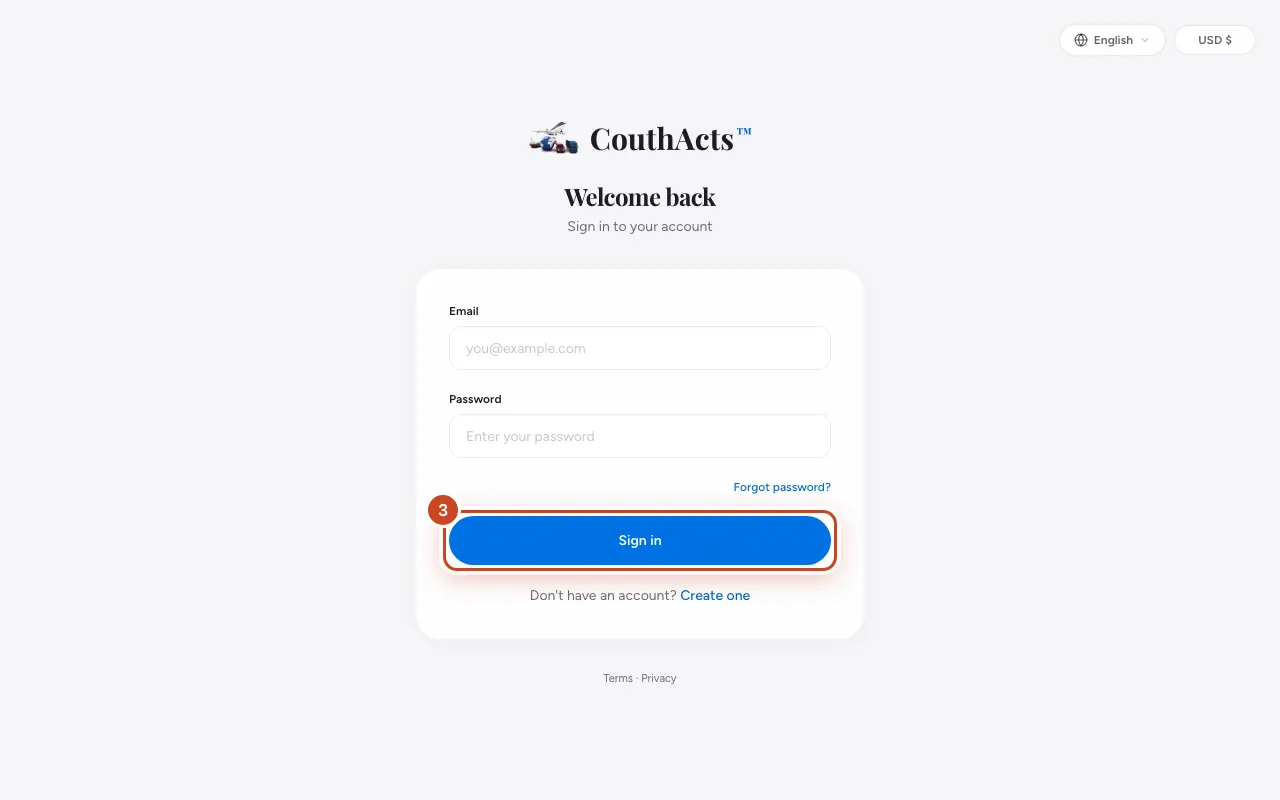
Step 4: To sign out, select Log out at the top of the page (on a phone, open the menu first).
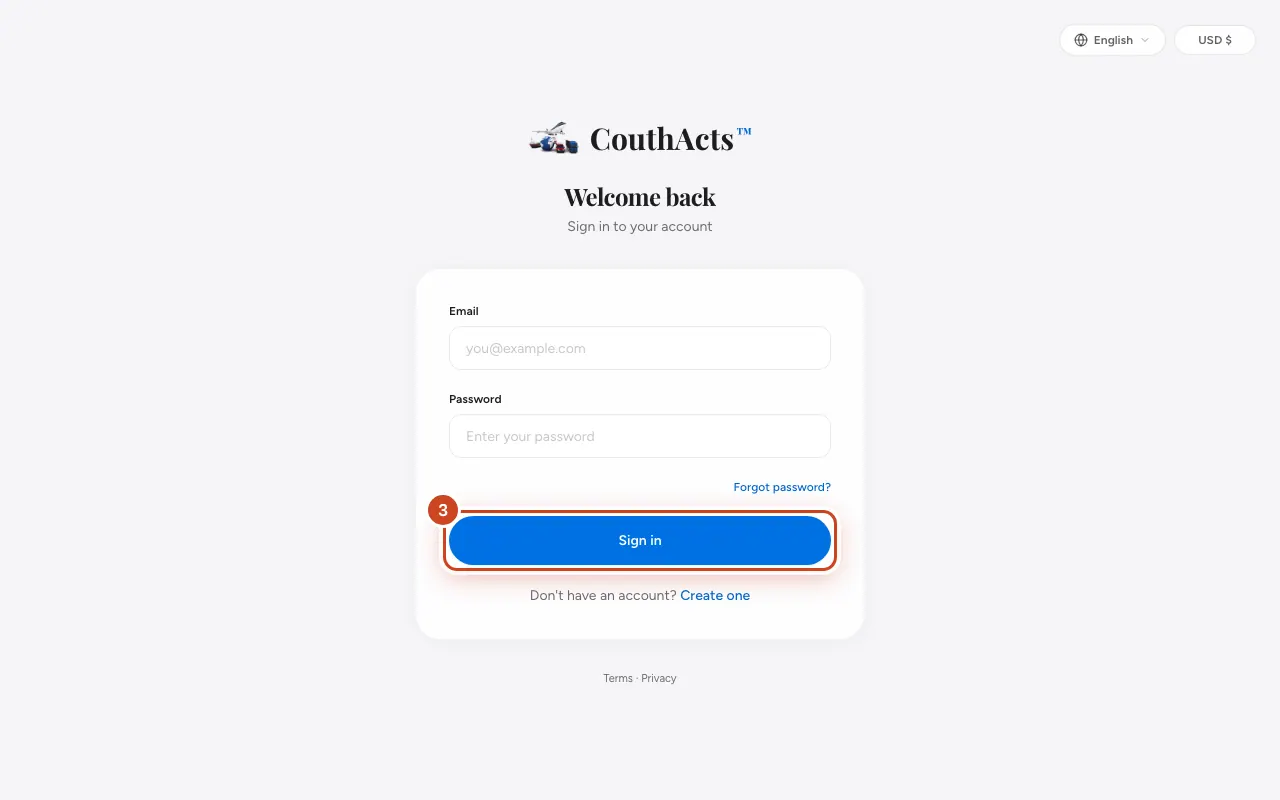
What happens next
You go to your dashboard, or back to the page you were trying to open.
Common problems and fixes
It says “Invalid credentials”.
Check the email for typos and try the password again. If you've forgotten it, use Reset your password.
It says “Too many attempts”.
For your security, sign-in pauses after several failed tries. Wait a while and try again, or reset your password.
It says my account is suspended.
Contact support. See Contact support.
On the app
- iPhone
- Tap Sign in on the welcome screen. The apps use email and password; sign out from Account.
- Android
- Tap Sign in on the welcome screen. Sign out from Account.
- Mac
- Sign out from the CouthActs menu → Sign Out….
- Apple TV
- Sign in with the on-screen keyboard. Your iPhone can type for you with the Continuity Keyboard or AutoFill.