Track your booking and share a tracking link
Watch the provider's live location while the job is underway, and share a public tracking link with anyone who needs it.
- Who it's for
- Customers.
- What you need first
- A booking that has started (for live location).
- Time needed
- About 2 minutes
Steps
Screenshots show the website with demo data. The CouthActs apps work the same way; differences are under “On the app”.
Step 1: Open the booking.
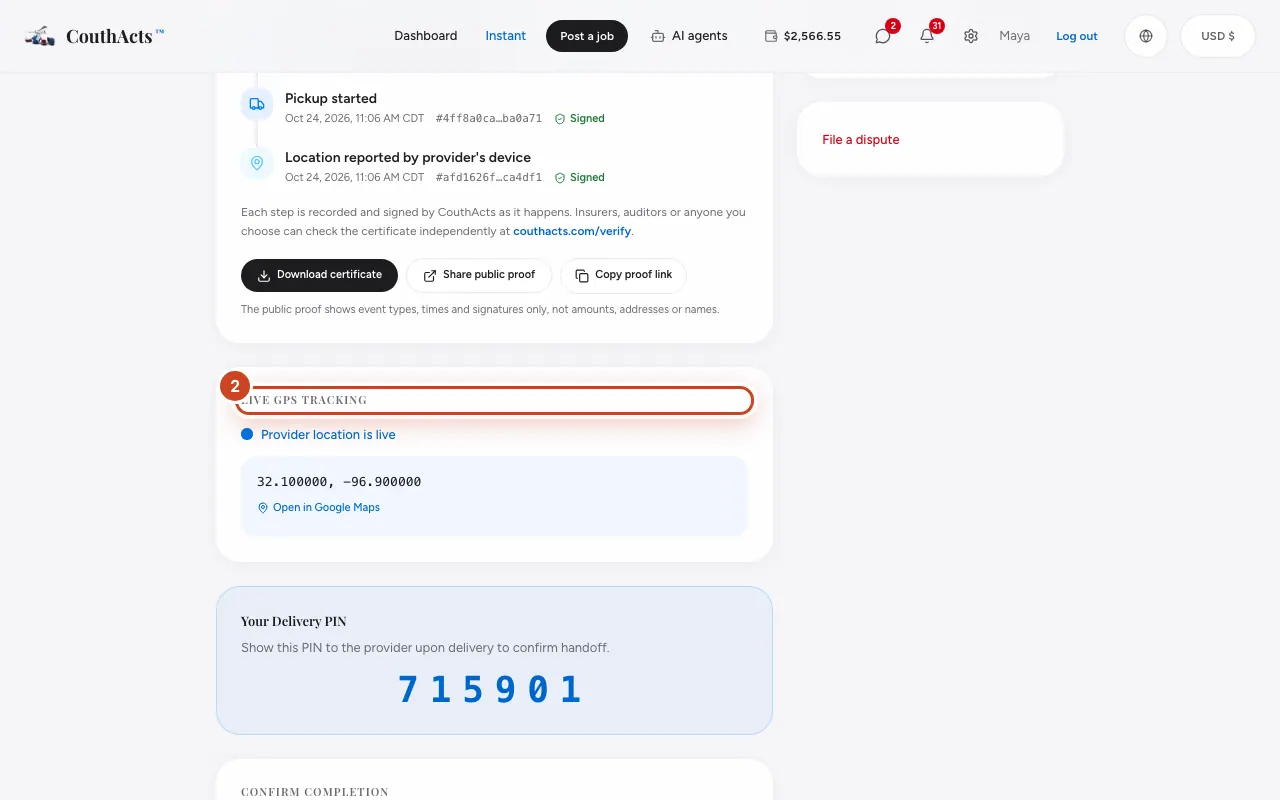
Step 2: Look at Live GPS Tracking. When the provider is sharing, it says Provider location is live.
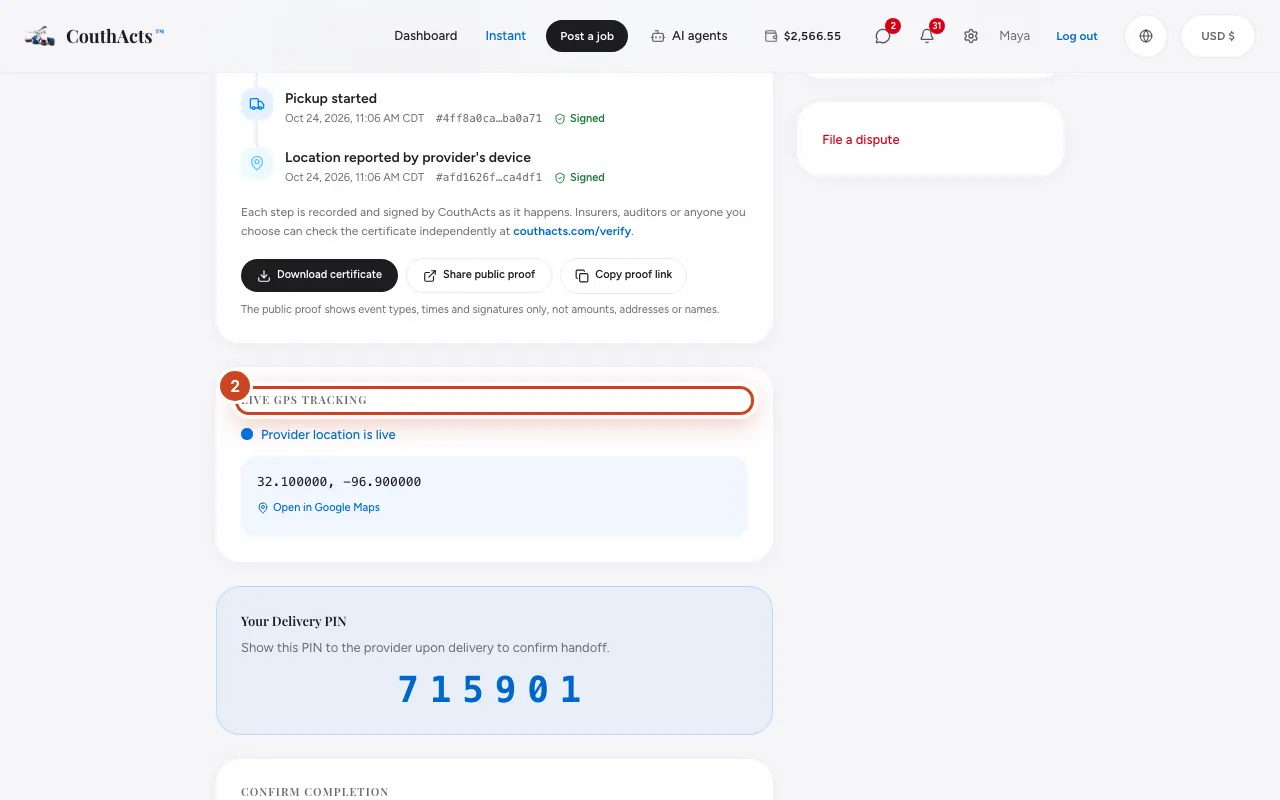
Step 3: Select Open in Google Maps to see the spot on a map.
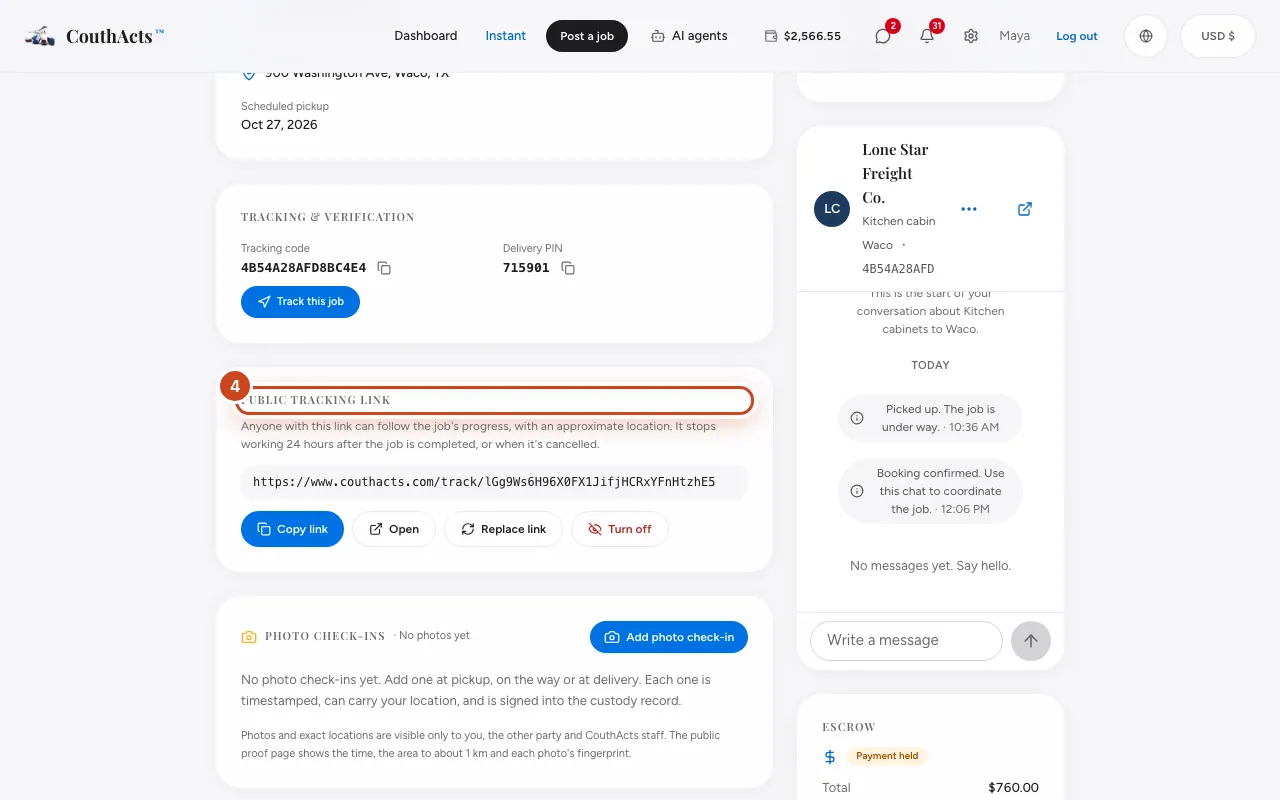
Step 4: Go to Public tracking link and select Copy link to share the link.
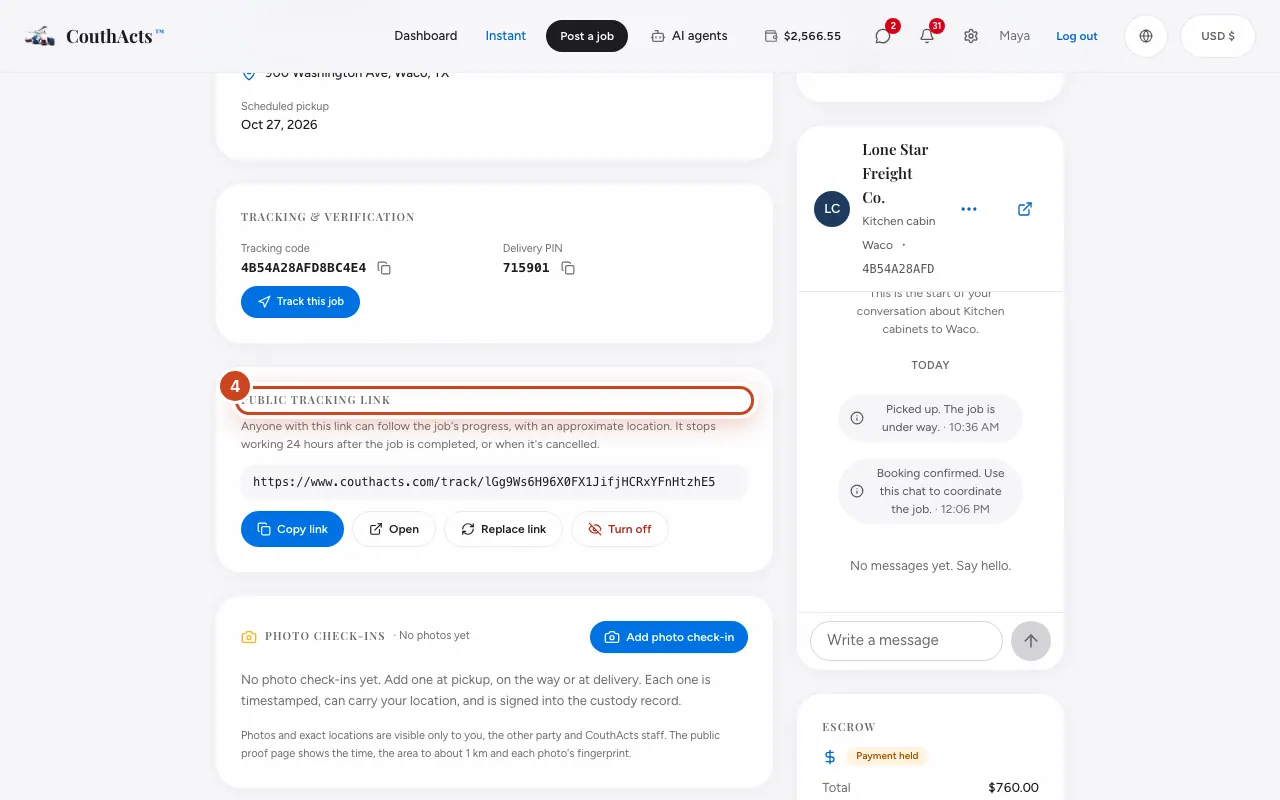
Step 5: To stop sharing, select Turn off, or Replace link to make a new link.
What happens next
Anyone with the link sees the job's progress and an approximate location. The link stops working 24 hours after the job is completed, or when it's cancelled.
Common problems and fixes
It says it's waiting for the provider.
The provider shares location from their phone. Send them a message if it doesn't start.
The location is out of date.
Location comes from the provider's device and can be delayed or unavailable. CouthActs doesn't watch it.
On the app
- iPhone
- In the booking, the Tracking section shows a map. Use Create tracking link or Share tracking link.
- Android
- In the booking, use Create a tracking link, Make a new link or Turn off the link.
- Apple TV
- Create tracking link shows the link as a QR code.