Find your way around a booking
Everything about a booked job is on one page: status, tracking code, delivery PIN, live location, messages, photos, payment and the chain of custody.
- Who it's for
- Customers and providers.
- What you need first
- A booking.
- Time needed
- About 2 minutes
Steps
Screenshots show the website with demo data. The CouthActs apps work the same way; differences are under “On the app”.
Step 1: Open your dashboard and select the booking under Your Bookings.
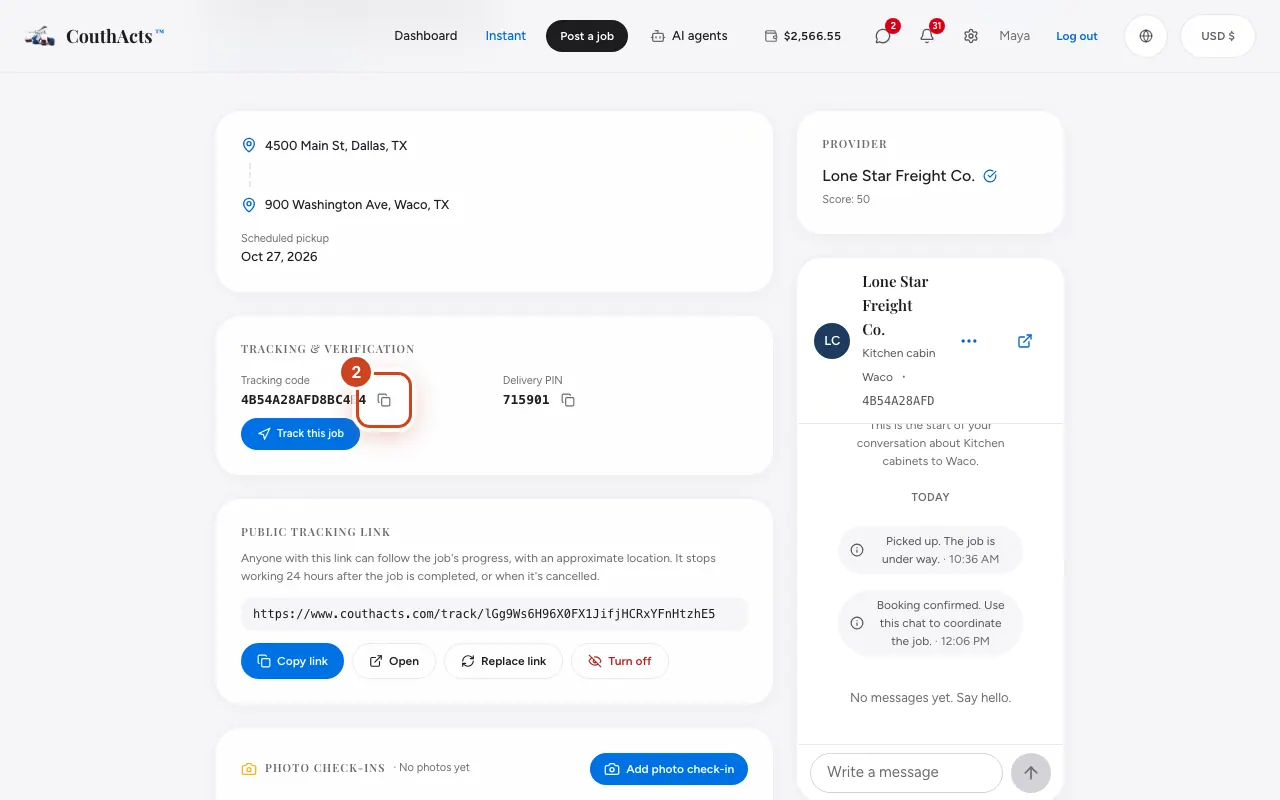
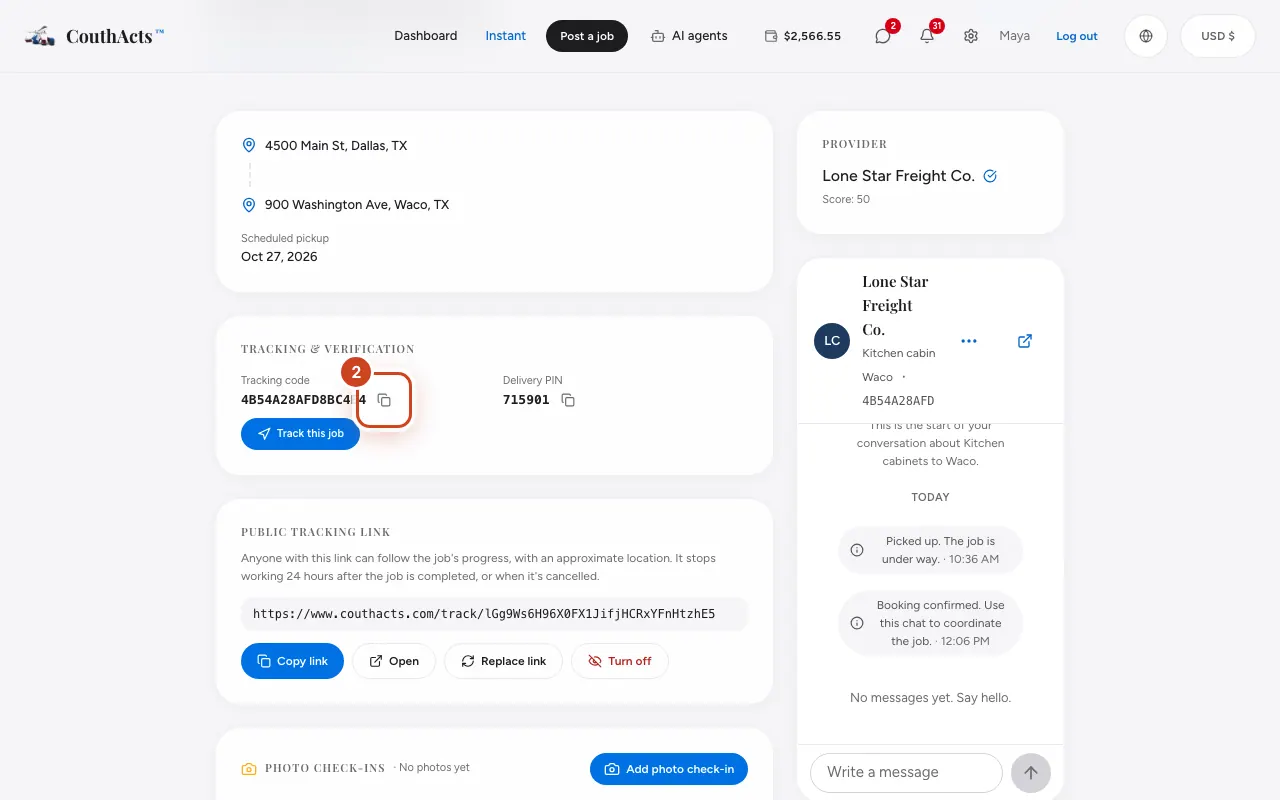
Step 2: At the top, find the Tracking code. Select Copy tracking code to copy it, for example when you contact support.
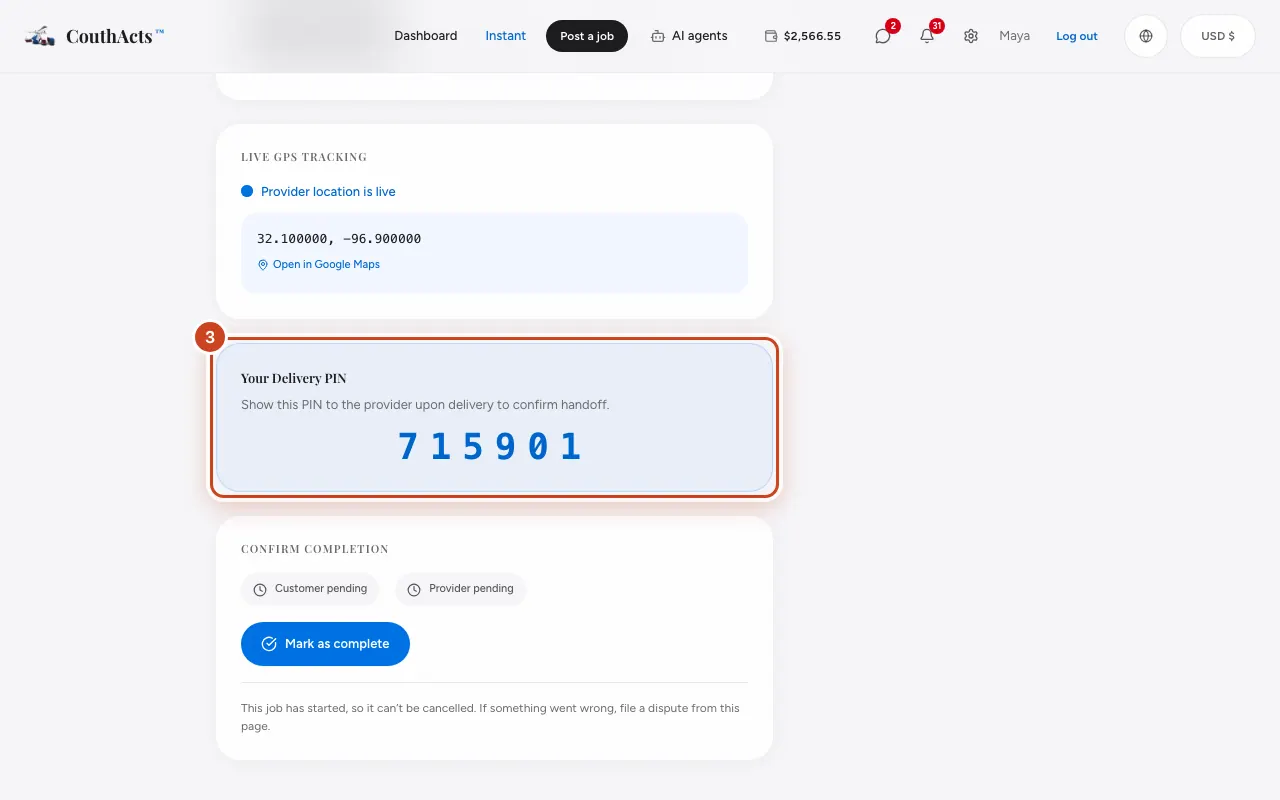
Step 3: Customers: find Your Delivery PIN. Show it to the provider only at delivery.
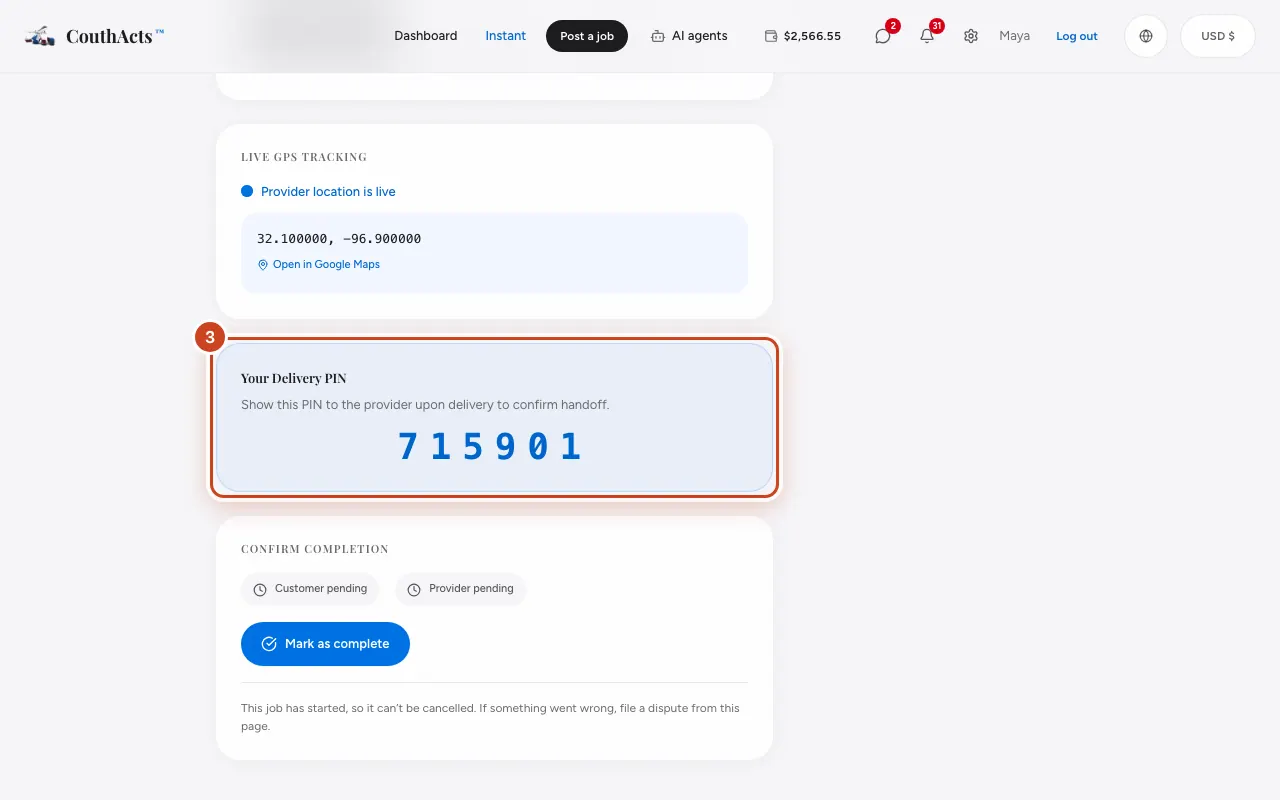
Step 4: Follow Live GPS Tracking once the job starts.
Step 5: Use the chat, Photo check-ins and Chain of custody sections further down.
Step 6: Check Payment & Protection for the price, payment terms and protection.
What happens next
The page updates as the job moves from confirmed to in progress to completed.
Common problems and fixes
It says “Booking not found”.
Make sure you're signed in to the account that made or took the booking.
On the app
- iPhone
- Open Bookings and tap the booking.
- iPad
- Bookings opens with the list beside the selected booking.
- Android
- Open Bookings and tap the booking.