Track a job with a tracking link
Follow a delivery without an account, using the public tracking link the customer shares. Customers and providers can also look up their own jobs by tracking code.
- Who it's for
- Anyone given a tracking link, such as the person receiving a delivery, and customers and providers looking up their own job.
- What you need first
- The public tracking link from the customer, or, if it's your own job, its 12-character tracking code and your sign-in.
- Time needed
- About 1 minute
Steps
Screenshots show the website with demo data. The CouthActs apps work the same way; differences are under “On the app”.
Step 1: Open the tracking link you were sent.
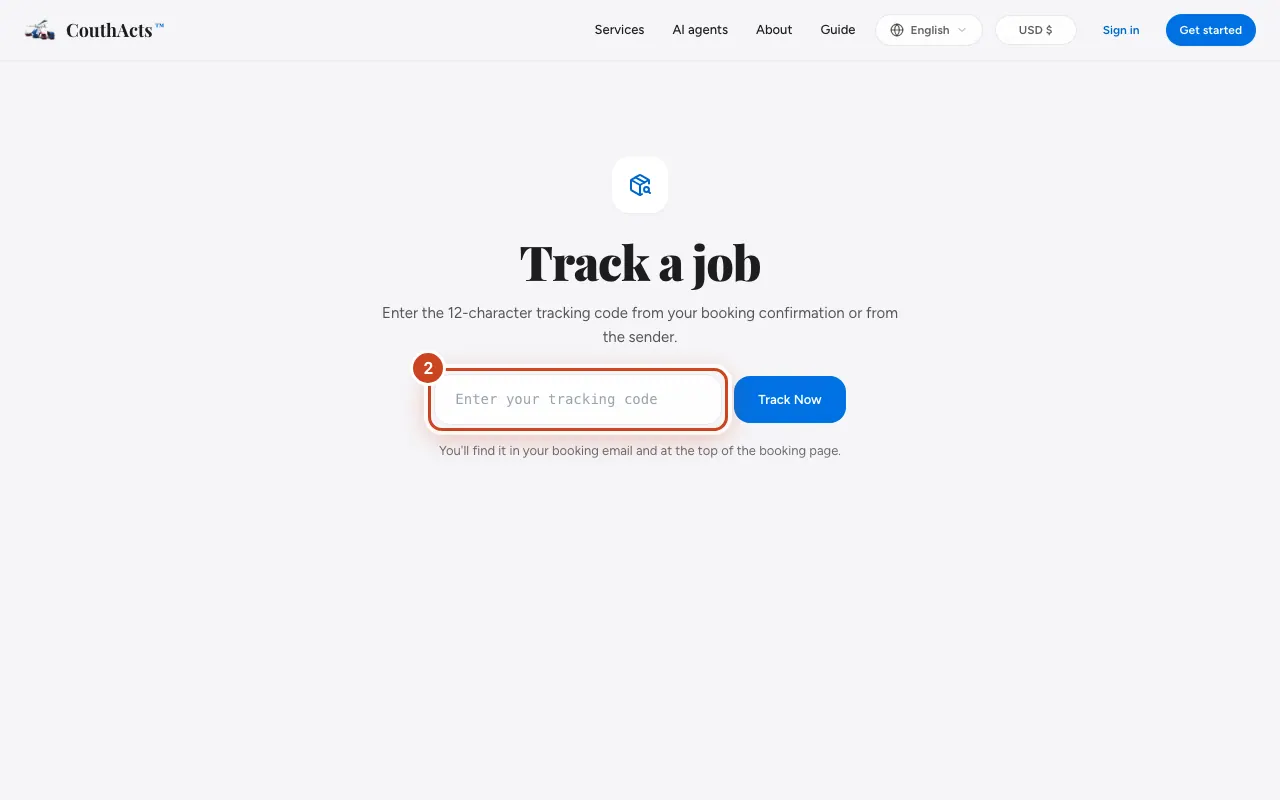
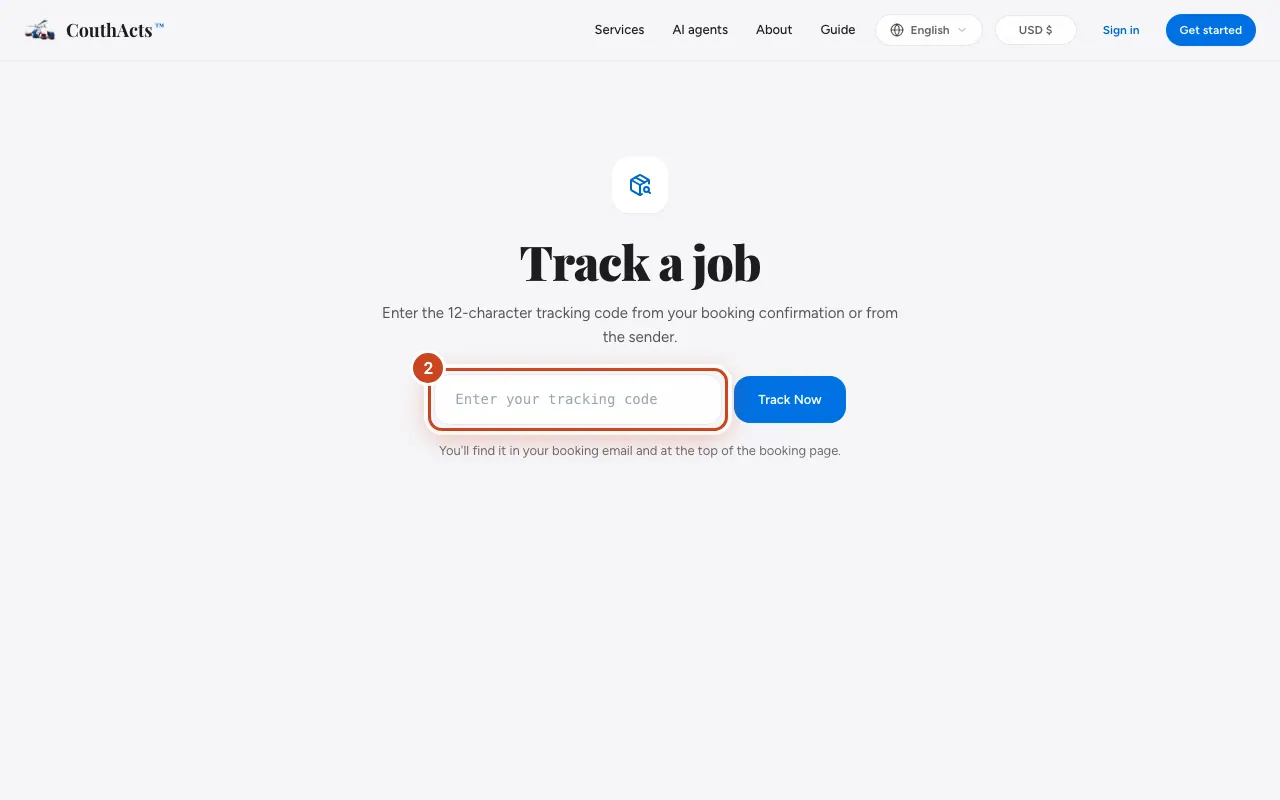
Step 2: Or, for your own job: sign in, go to Track a job and type the 12-character tracking code.
Step 3: Read the status at the top: confirmed, in progress or completed.
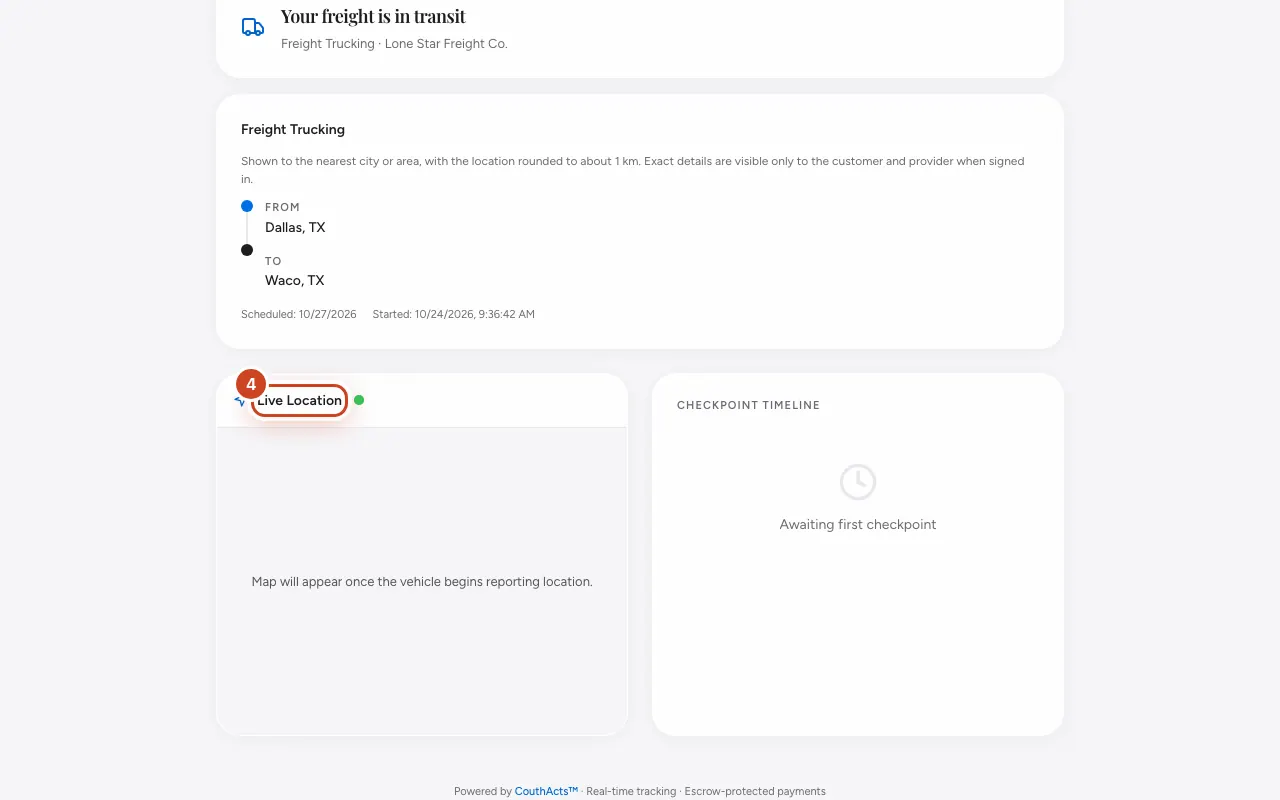
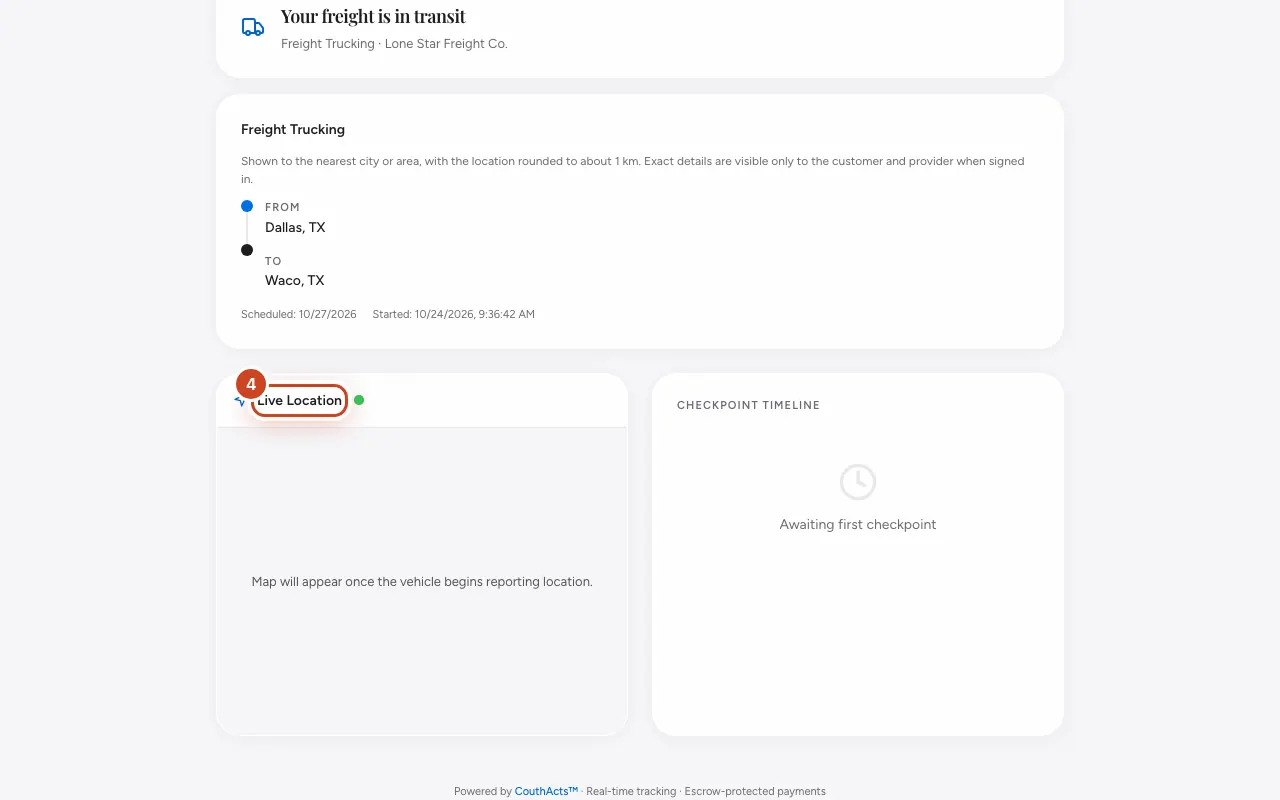
Step 4: Look at the map for the live location, once the provider shares it.
Step 5: Scroll down to Proof of custody to see the signed record of the job.
What happens next
The page updates as the job moves. A public tracking link stops working 24 hours after the job is completed, or when it's cancelled or the customer turns it off.
Common problems and fixes
It says “Tracking code not found”.
A tracking code on its own only works for the customer and provider, signed in. Anyone else needs the public tracking link: ask the customer to share it.
The map is empty.
The map appears once the provider starts sharing location from their phone.
Why is the location approximate?
A public tracking link shows the nearest city or area, rounded to about 1 km, to keep addresses private. The customer and provider see exact details when signed in.
The link says it has expired.
Public tracking ends 24 hours after a job is completed, or when it's cancelled or disputed. If you're the customer or provider, sign in to see the booking.
On the app
- iPhone
- Tap Track a job on the welcome screen, or go to Bookings → Track a job.
- iPad
- Use Track a Job in the sidebar, or press Shift-Command-T.
- Android
- Tap Track a job on the welcome screen.
- Mac
- Choose Go → Track a Job (Shift-Command-T).