Set up job alerts
Hear about new jobs in your approved services by push notification and email, right away or as a daily digest.
- Who it's for
- Providers.
- What you need first
- At least one approved service.
- For push: the CouthActs app on your phone, signed in, with notifications allowed.
- Time needed
- About 3 minutes
Steps
Screenshots show the website with demo data. The CouthActs apps work the same way; differences are under “On the app”.
Step 1: Open Settings and go to Job alerts.
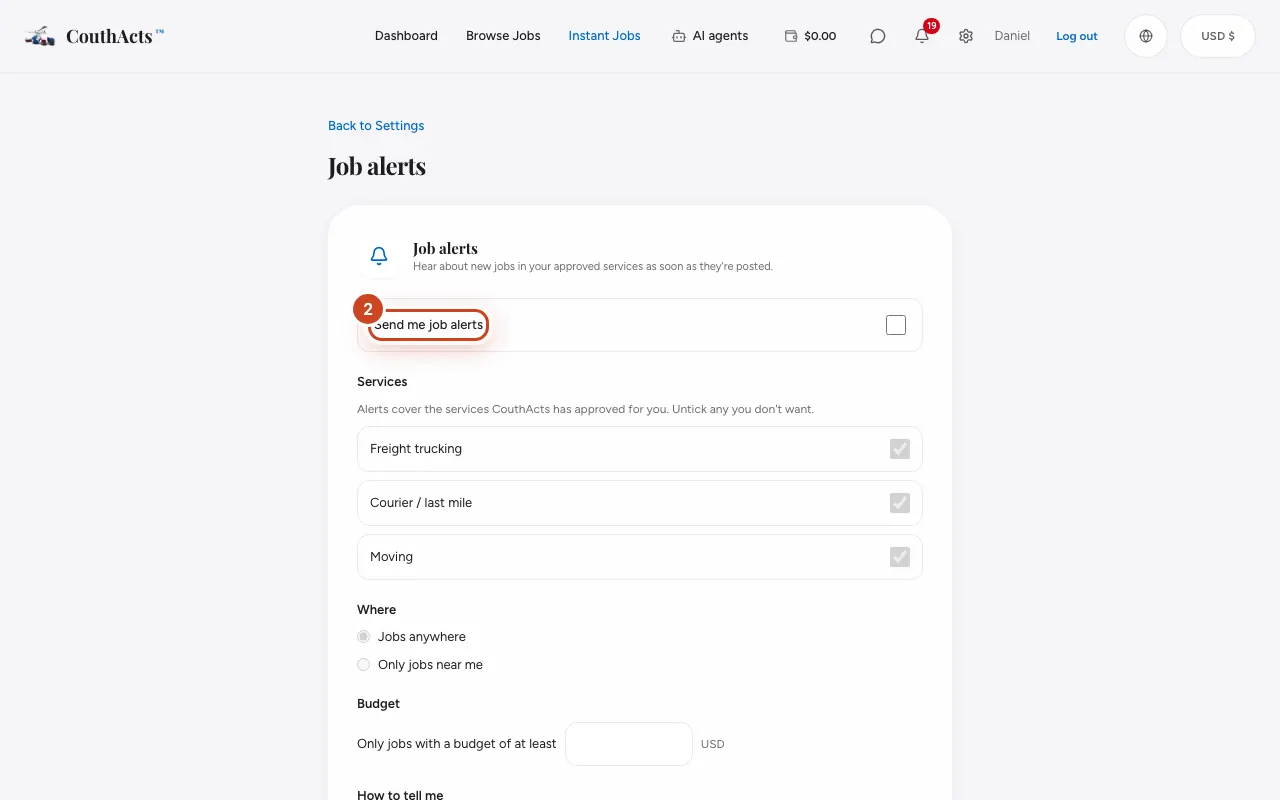
Step 2: Tick Send me job alerts.
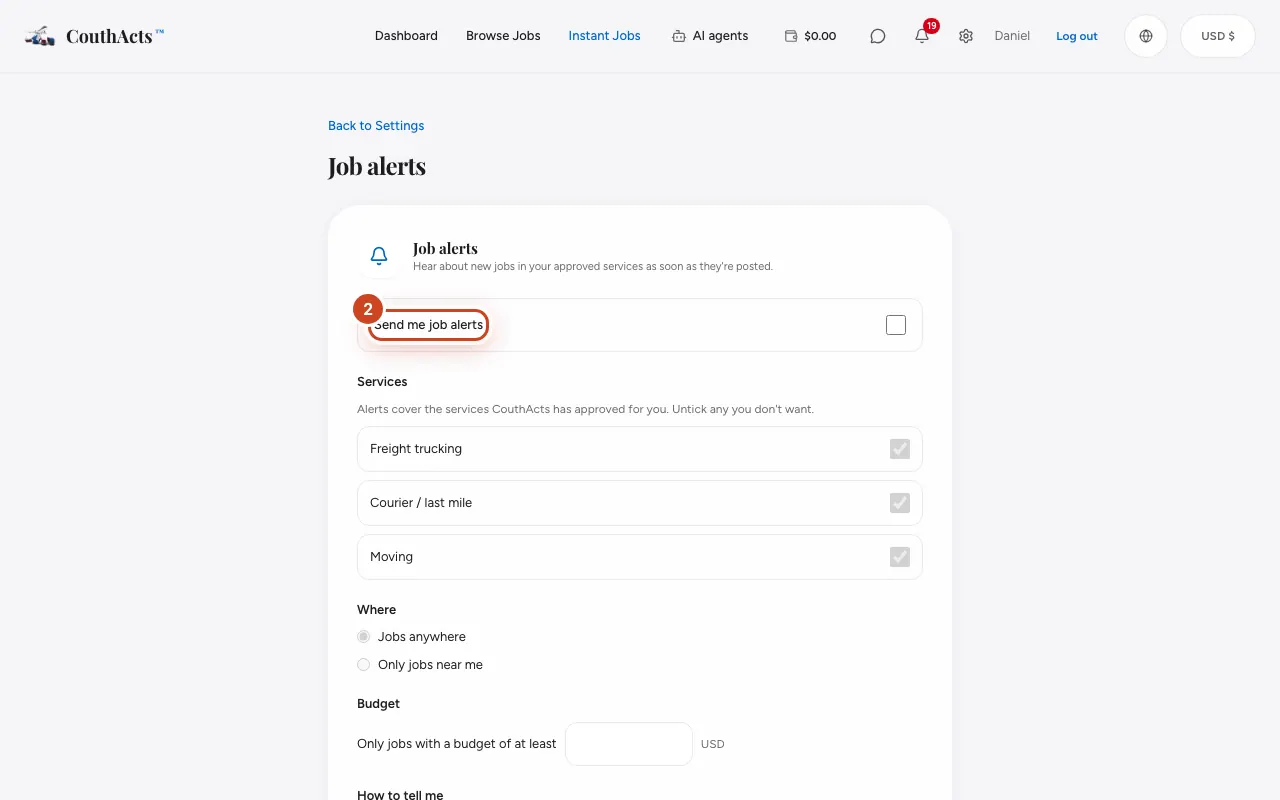
Step 3: Under Services, untick any service you don't want alerts for.
Step 4: Under Where, choose Jobs anywhere or Only jobs near me with a distance and base city.
Step 5: Under Budget, set the smallest budget you'd take.
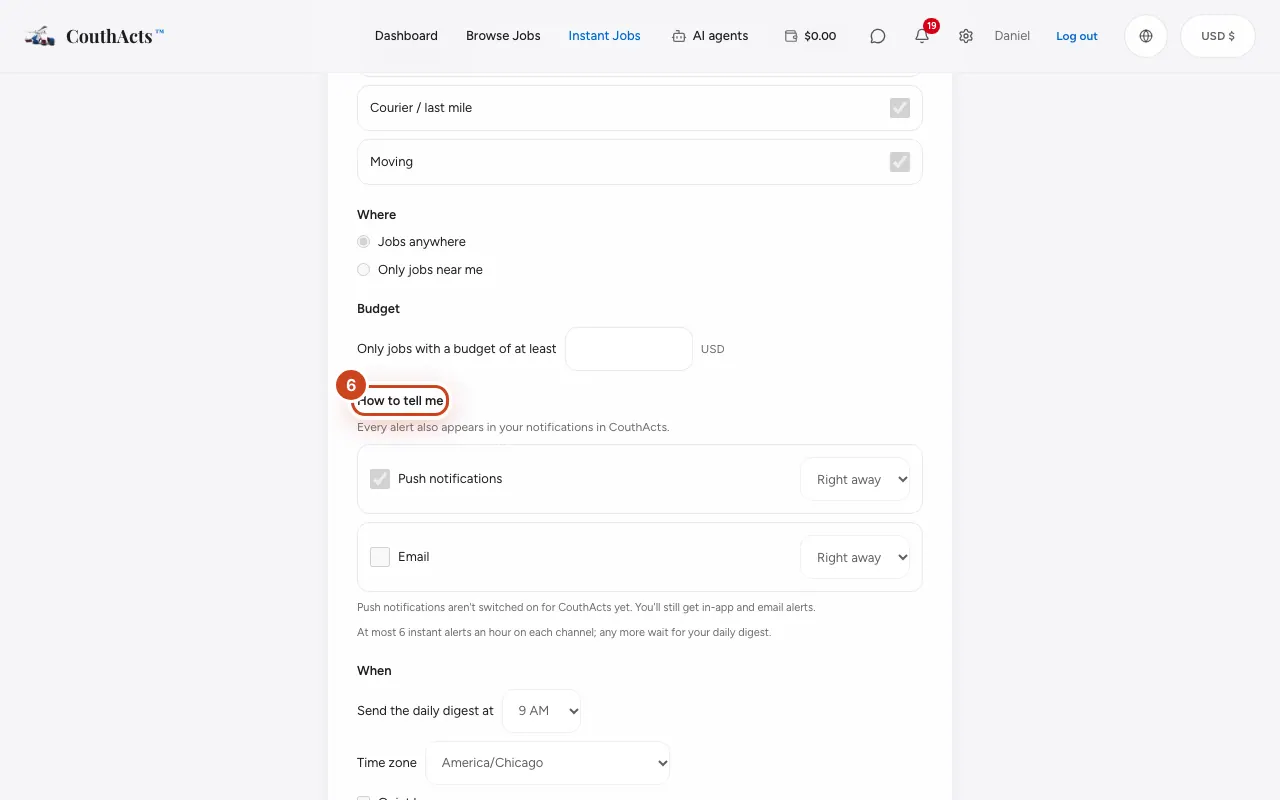
Step 6: Under How to tell me, choose Push notifications, Email or both, each Right away or Daily digest.
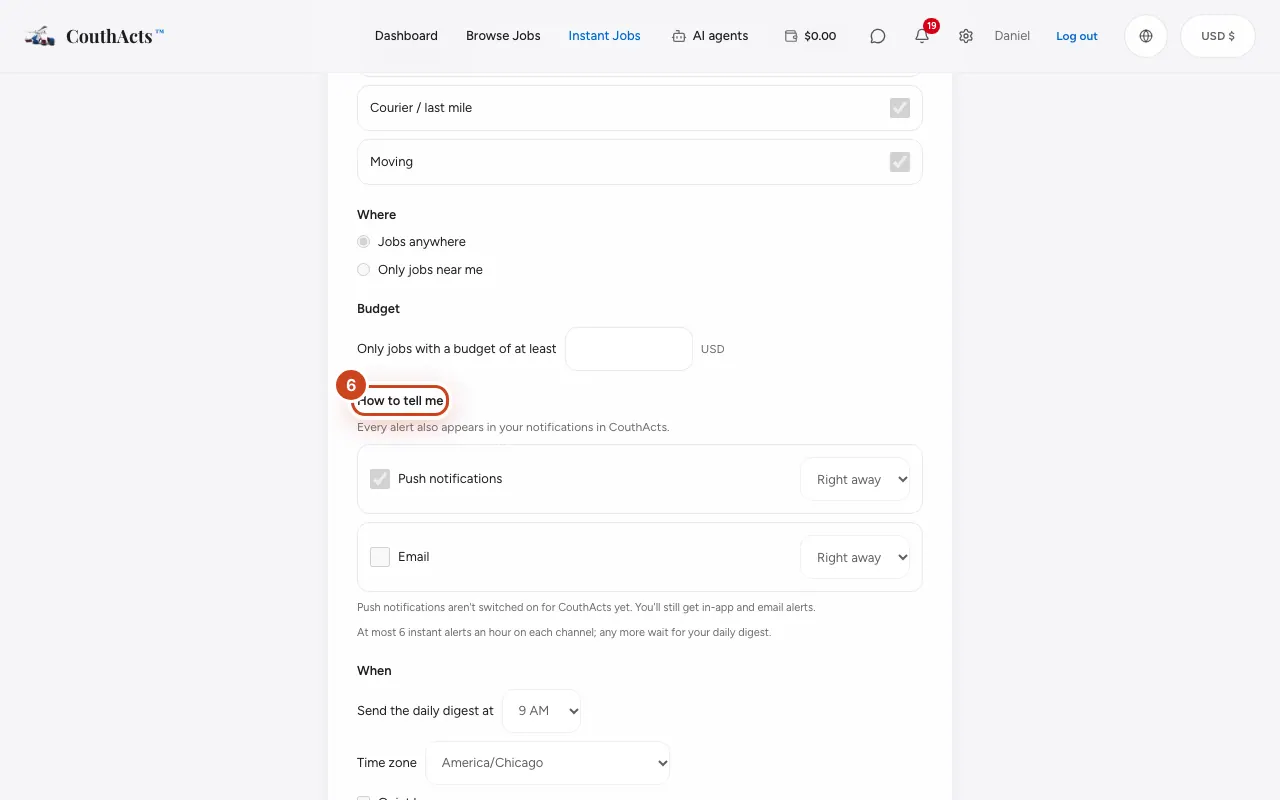
Step 7: Set Quiet hours if you like, then select Save job alerts.
Step 8: Select Send a test alert to check it works.
What happens next
You're alerted about new jobs that match. Job alerts come by push and email only, and every alert also appears in your notifications. There's a limit on instant alerts per hour; extras wait for your daily digest.
Common problems and fixes
No phones are signed in.
Sign in to the CouthActs app on your phone and allow notifications, then test again.
A service isn't in the list.
Alerts cover approved services only. See Get verified for your services.
I need a break.
Use Pause alerts to pause alerts for a few hours.
On the app
- iPhone
- Go to Account → Job alerts, then Save changes.
- Android
- Go to Account → Job alerts, then Save changes.
- Mac
- Choose Go → Job Alerts.
- Apple TV
- Apple TV shows your job alerts read-only.