Choose your notifications
See your in-app notifications, pick which emails you get and check that push notifications reach your phone.
- Who it's for
- Customers and providers.
- What you need first
- For push notifications: the CouthActs app on your phone, signed in, with notifications allowed.
- Time needed
- About 2 minutes
Steps
Screenshots show the website with demo data. The CouthActs apps work the same way; differences are under “On the app”.
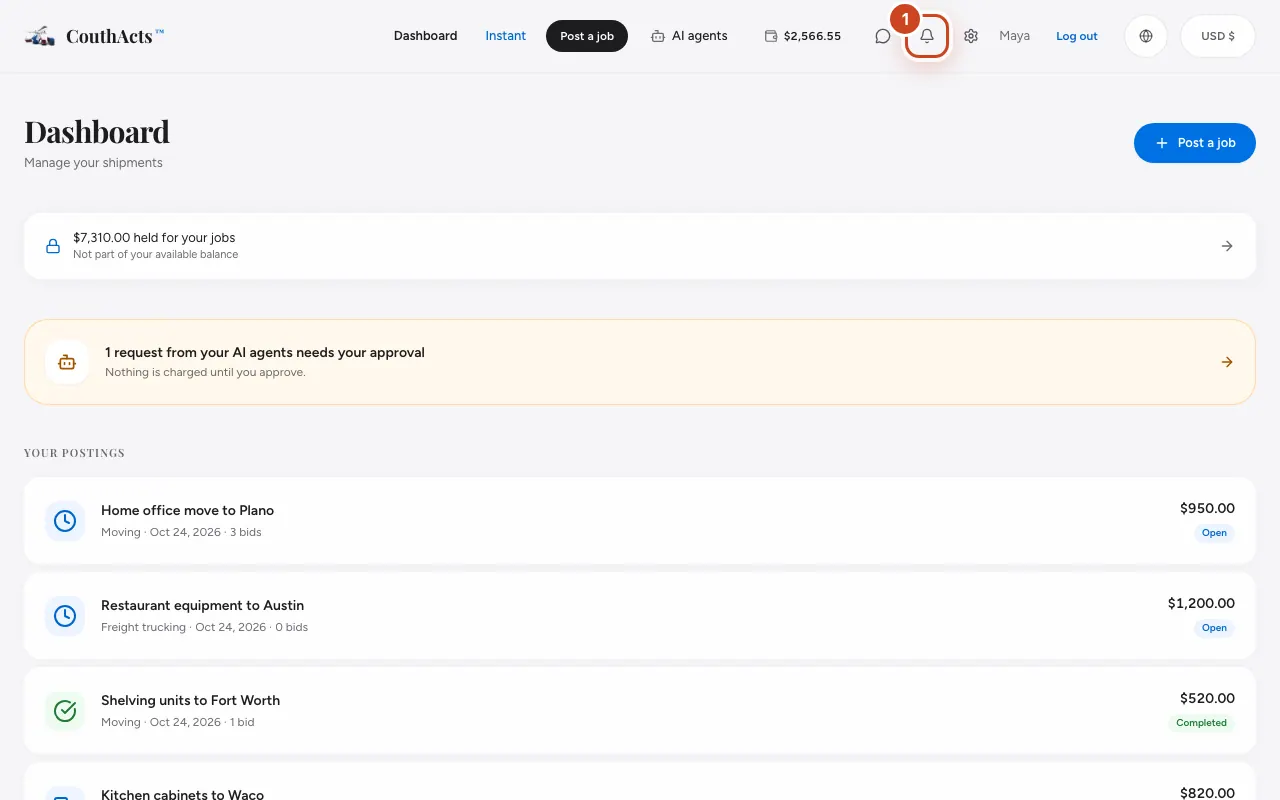
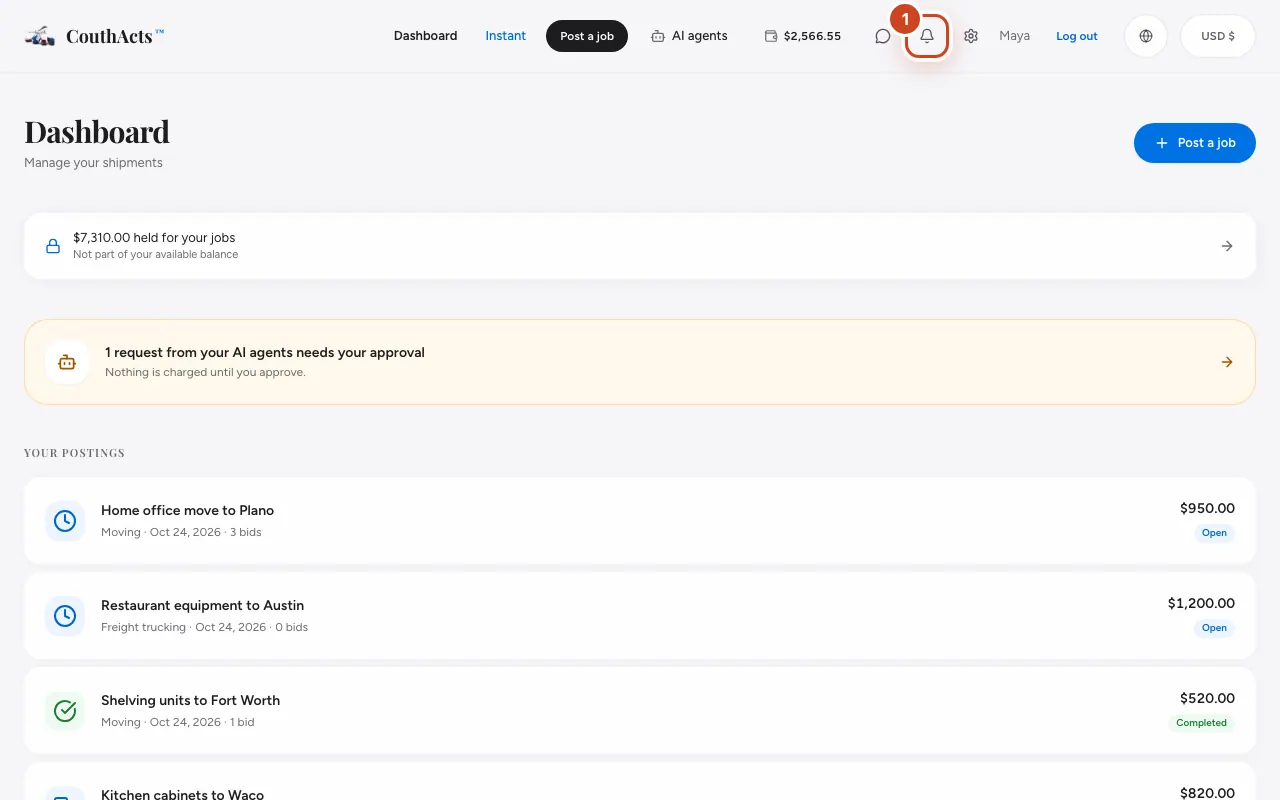
Step 1: Select the bell at the top of the page to see your notifications. Select Mark all read to clear them.
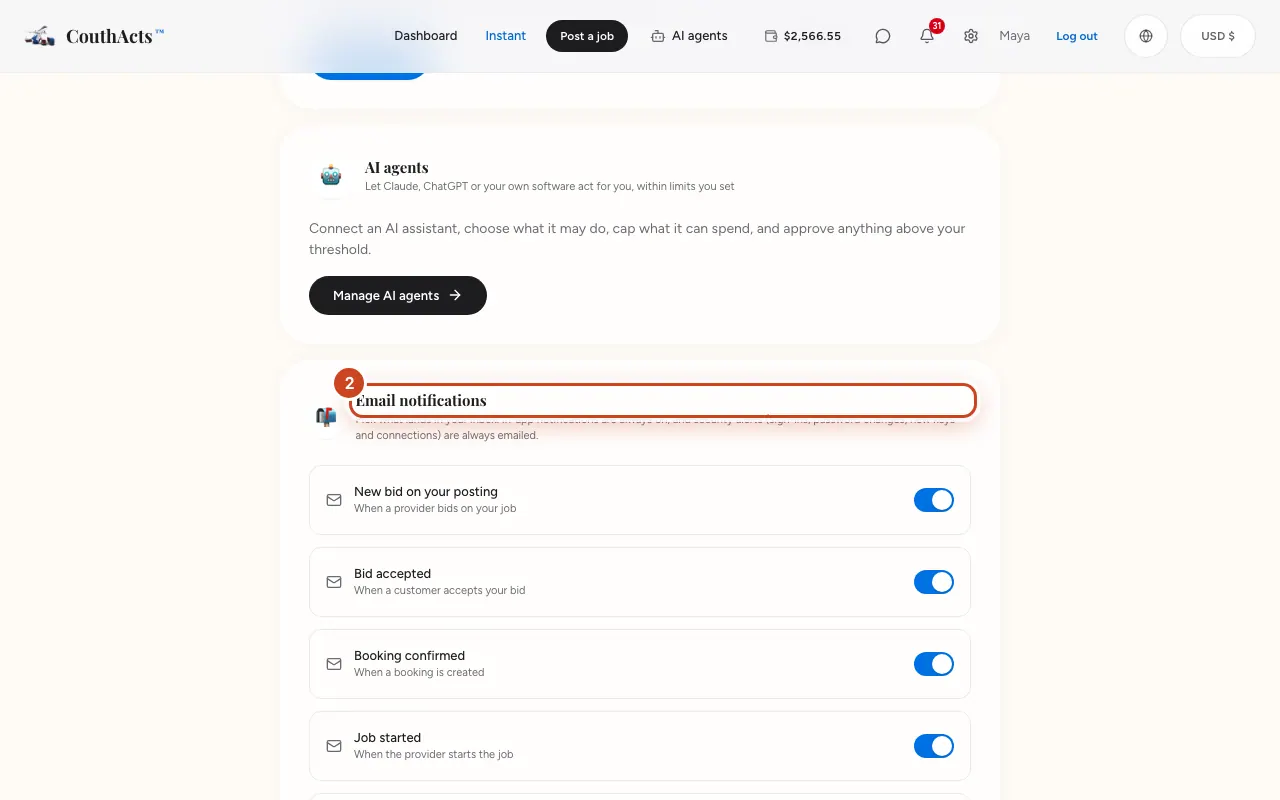
Step 2: Open Settings and go to Email notifications.
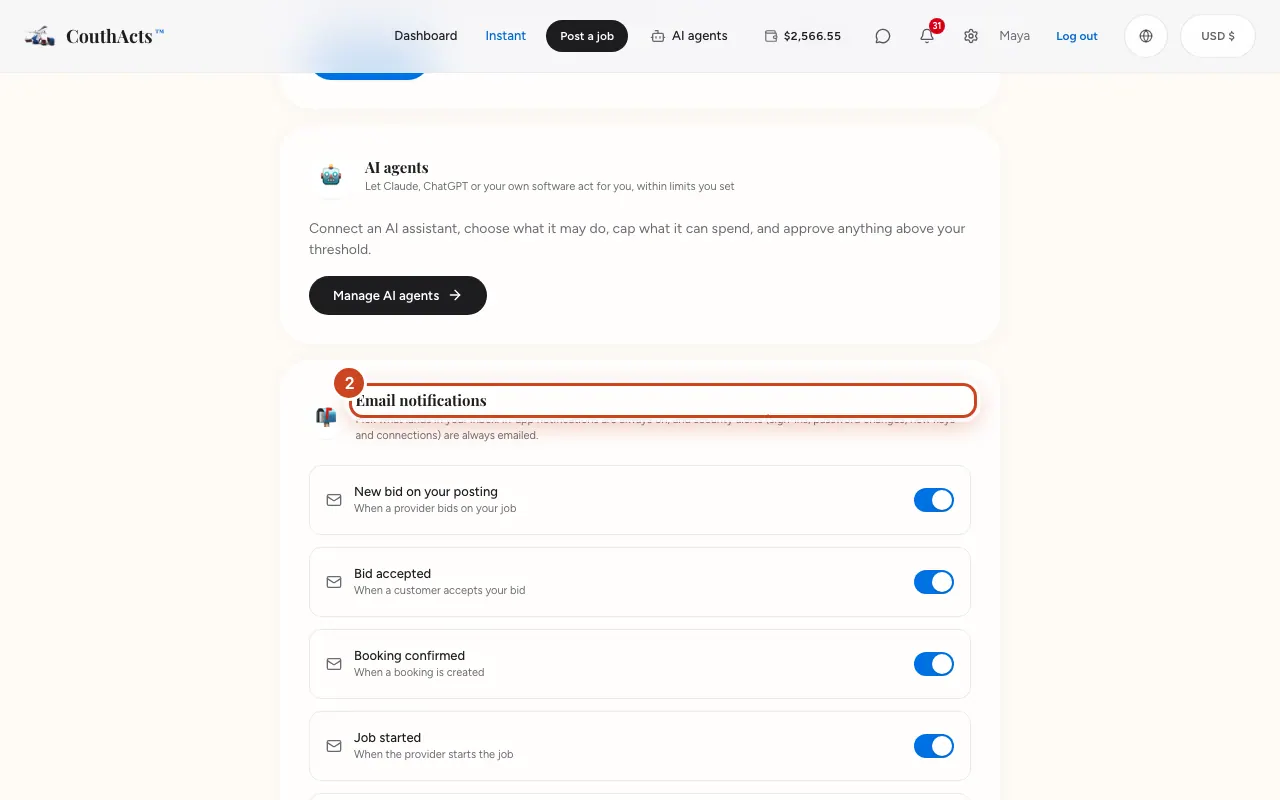
Step 3: Untick the emails you don't want.
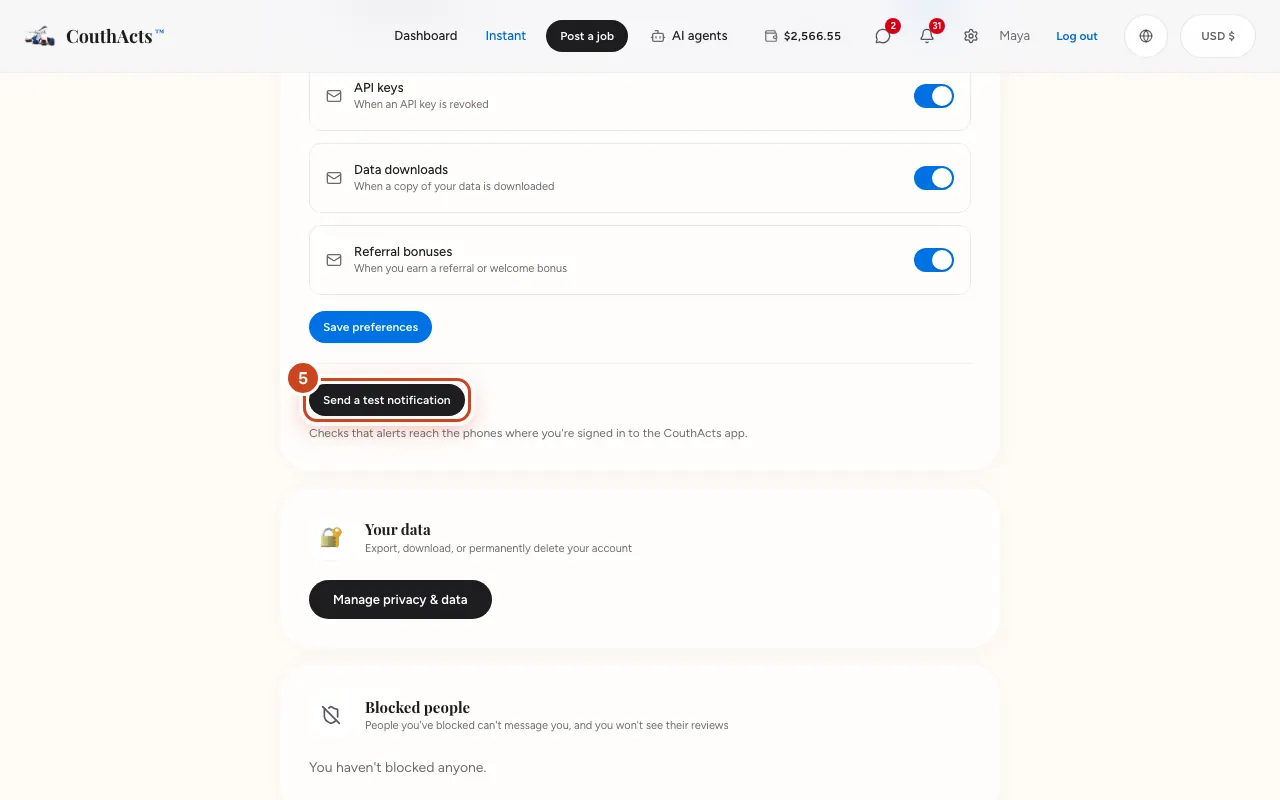
Step 4: Select Save preferences.
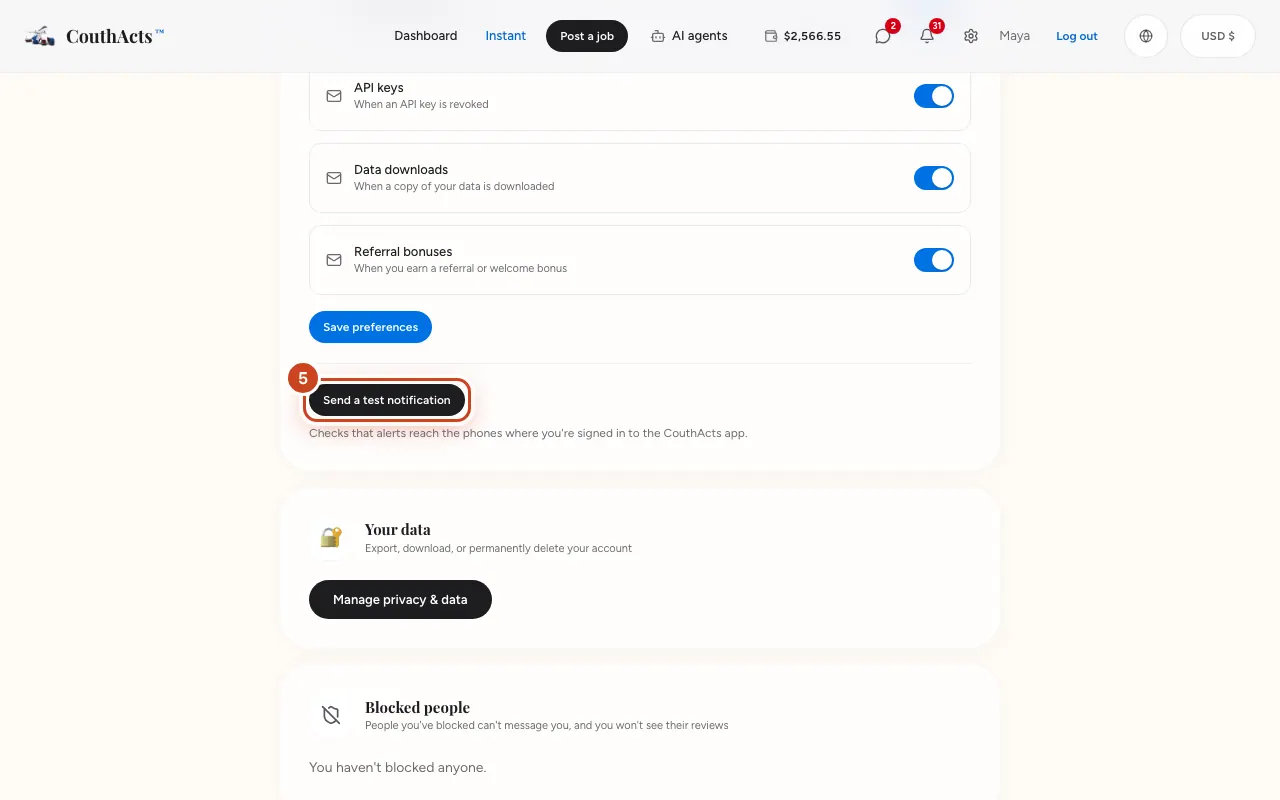
Step 5: To check your phone gets push notifications, select Send a test notification.
What happens next
In-app notifications are always on. Security emails (sign-ins, password changes, new keys and connections) are always sent, so you know if someone else is using your account.
Common problems and fixes
The test says no phones are signed in.
Open the CouthActs app on your phone, sign in and allow notifications, then try again.
I want to stop one kind of email from my inbox.
Every email has an unsubscribe link at the bottom that opens your email preferences.
Providers: where are job alerts?
Job alerts have their own settings. See Set up job alerts.
On the app
- iPhone
- The bell on Home opens your notifications. Turn push on or off in the iPhone Settings app.
- Android
- Account → Notification settings opens the Android settings, with channels for jobs and payments, messages and live location.
- Mac
- CouthActs → Settings… → Notifications explains how to turn them on in System Settings.
- Apple TV
- Apple TV shows a badge count only.