Open a dispute
If a job went wrong, open a dispute from the booking page. The payment is frozen and a real person on the CouthActs team reviews it.
- Who it's for
- Customers and providers on a booking whose payment is still held.
- What you need first
- The booking's payment hasn't been released yet.
- Photos, messages or anything else that shows what happened.
- Time needed
- About 5 minutes
- Problem raised
- Payment frozen
- A person reviews it
- Refund to customer
- Split
- Release to provider
Steps
Screenshots show the website with demo data. The CouthActs apps work the same way; differences are under “On the app”.
Step 1: Open the booking.
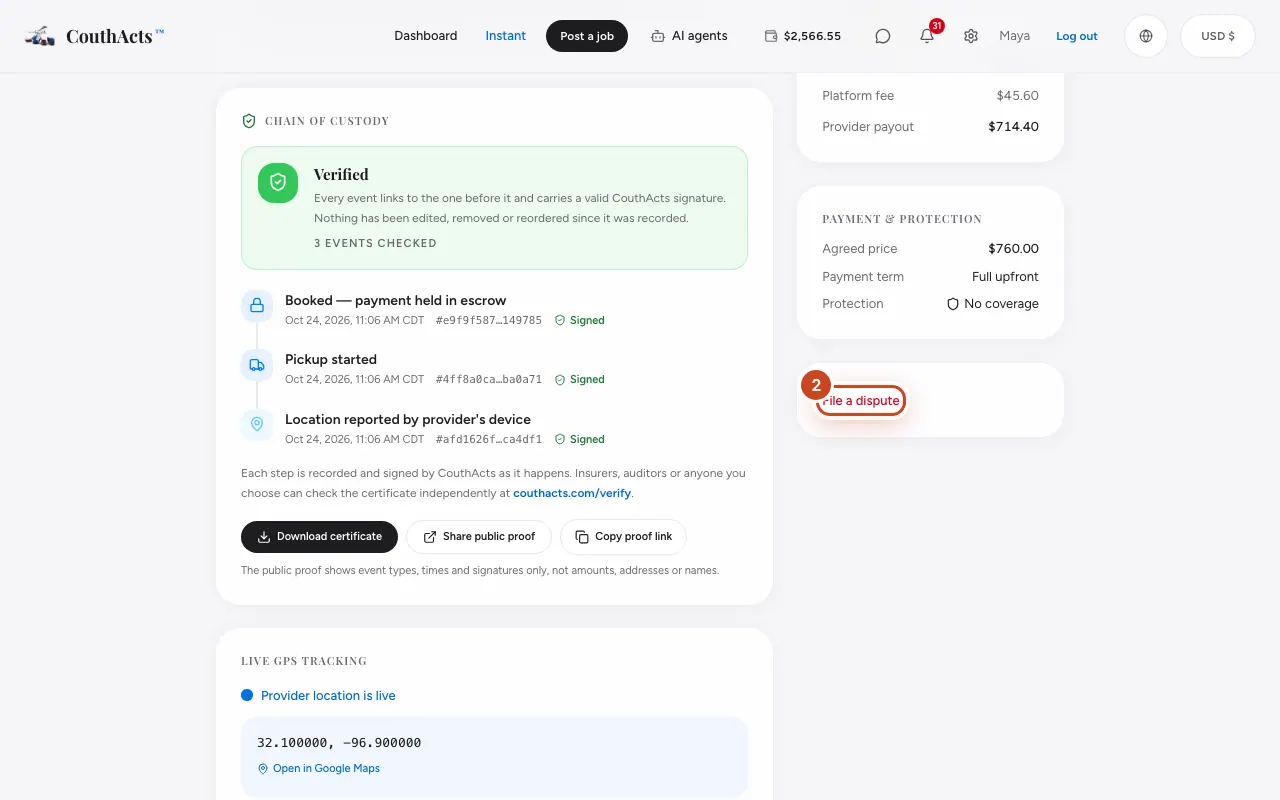
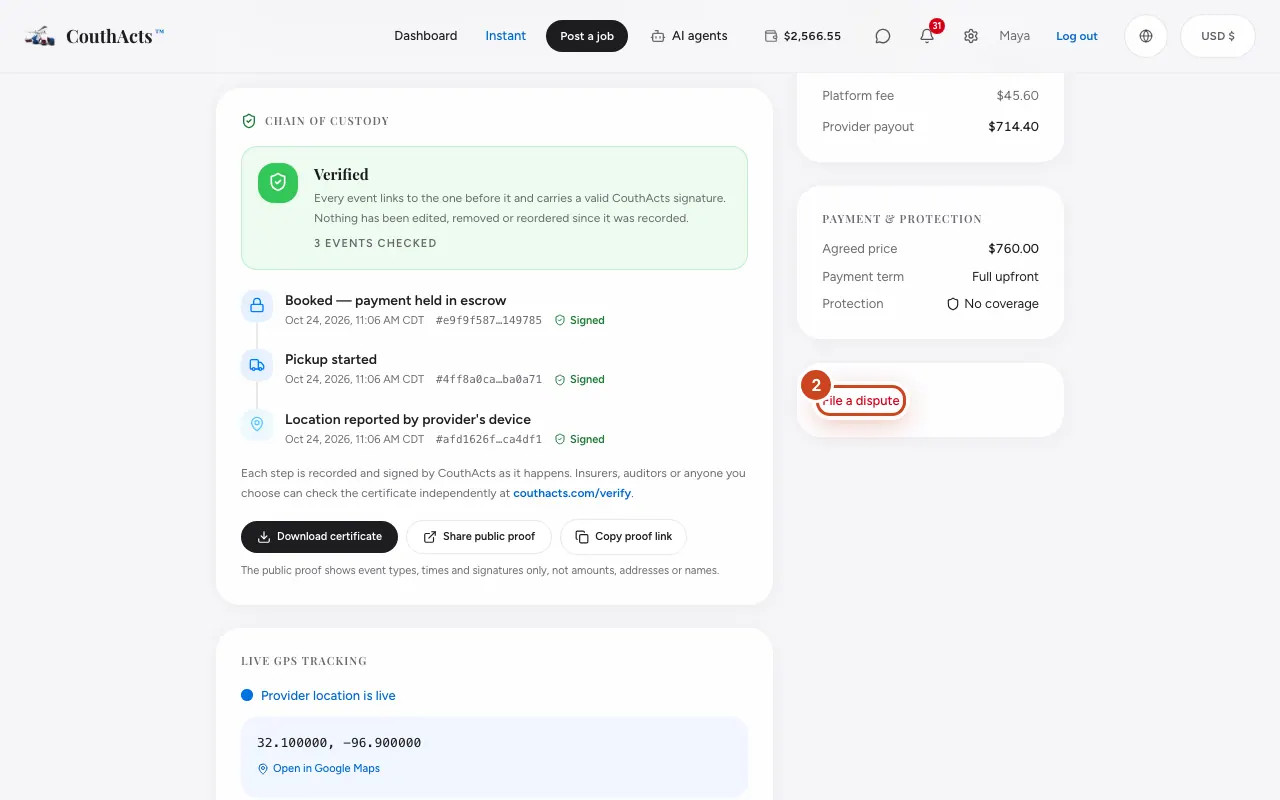
Step 2: Select File a dispute (during the 24-hour hold it's Raise a problem).
Step 3: Choose a Reason.
Step 4: Describe what happened in Description.
Step 5: Select Submit dispute.
What happens next
The payment stays frozen while the CouthActs team reviews the dispute. Keep your photos, receipts and messages ready: the team may ask either side for them. The decision can be a full refund, a full release or a split, and you're told when it's resolved.
Common problems and fixes
I don't see the dispute button.
Disputes can be opened only while the payment is held. Once it's released, make a Protection claim if you bought protection, or contact support.
How long does it take?
Each dispute is reviewed by a person and takes as long as the facts need. You're notified as soon as there's a decision.
Should I give the PIN if goods are damaged?
No. Open a dispute before you share the PIN, so the damage is on record at handover.
On the app
- iPhone
- In the booking, tap Raise a problem or Open dispute while the payment is held.
- Android
- In the booking, tap Raise a problem or Open dispute while the payment is held.
- Apple TV
- Apple TV shows a QR code (Raise a problem) to do this on your phone.